• Point of Sale
  • Categories
    • Getting Started with SalesPlay
    • Web POS
    • Sales
    • Product
    • Inventory
    • User
    • Customers
    • Reports
    • Settings
  • Community
  • Point of Sale
  • Categories
    • Getting Started with SalesPlay
    • Web POS
    • Sales
    • Product
    • Inventory
    • User
    • Customers
    • Reports
    • Settings
  • Community
Home/Knowledge Base/Product/How to Use Barcodes and Find Products Easily

How to Use Barcodes and Find Products Easily

February 11, 2026

Key Points to Remember
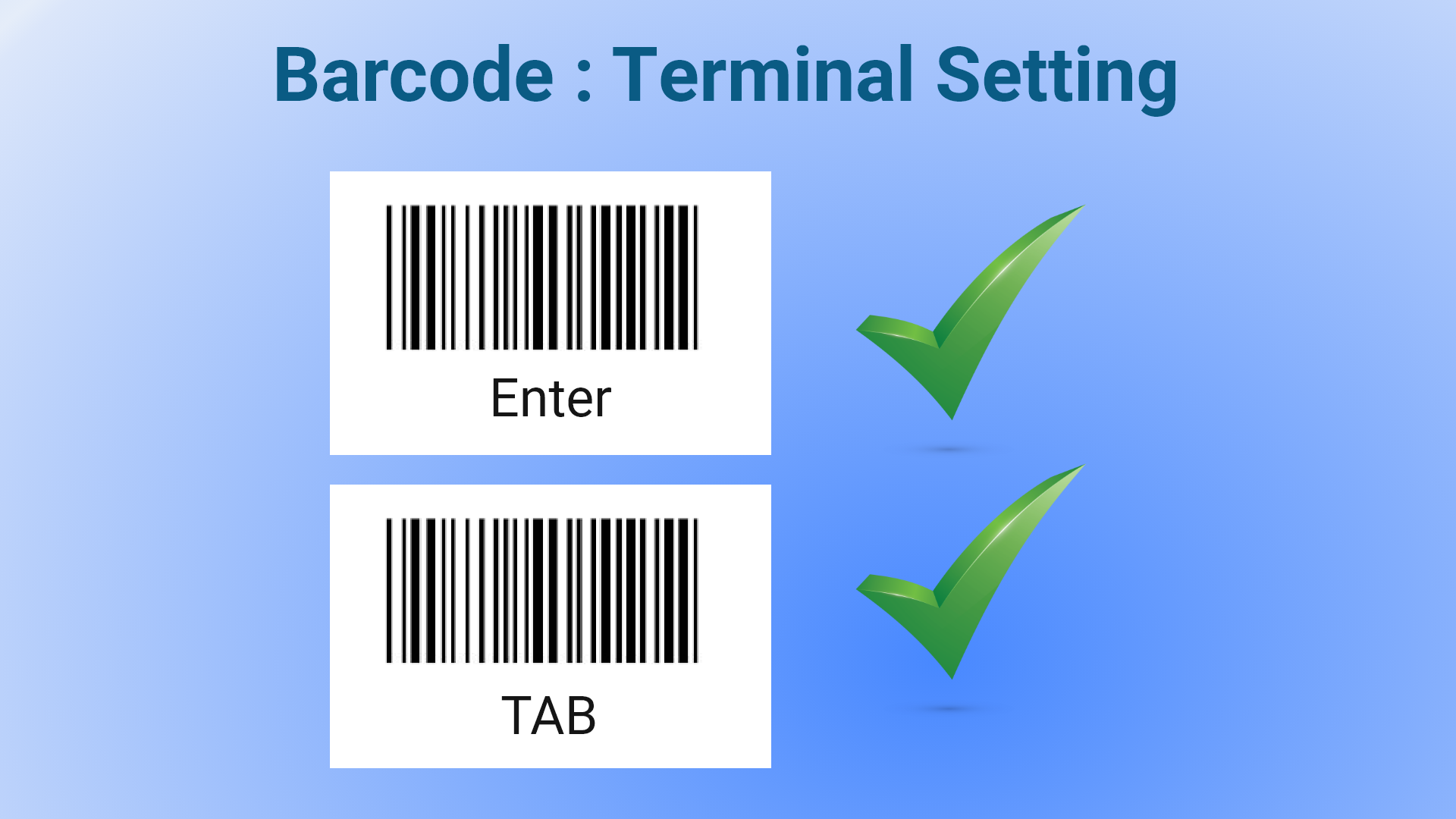


  • Ensure barcode terminal settings are configured to include “Enter” or “TAB” keys. Otherwise, barcode functionality may not work properly.

Enable Internal Barcode Scanning

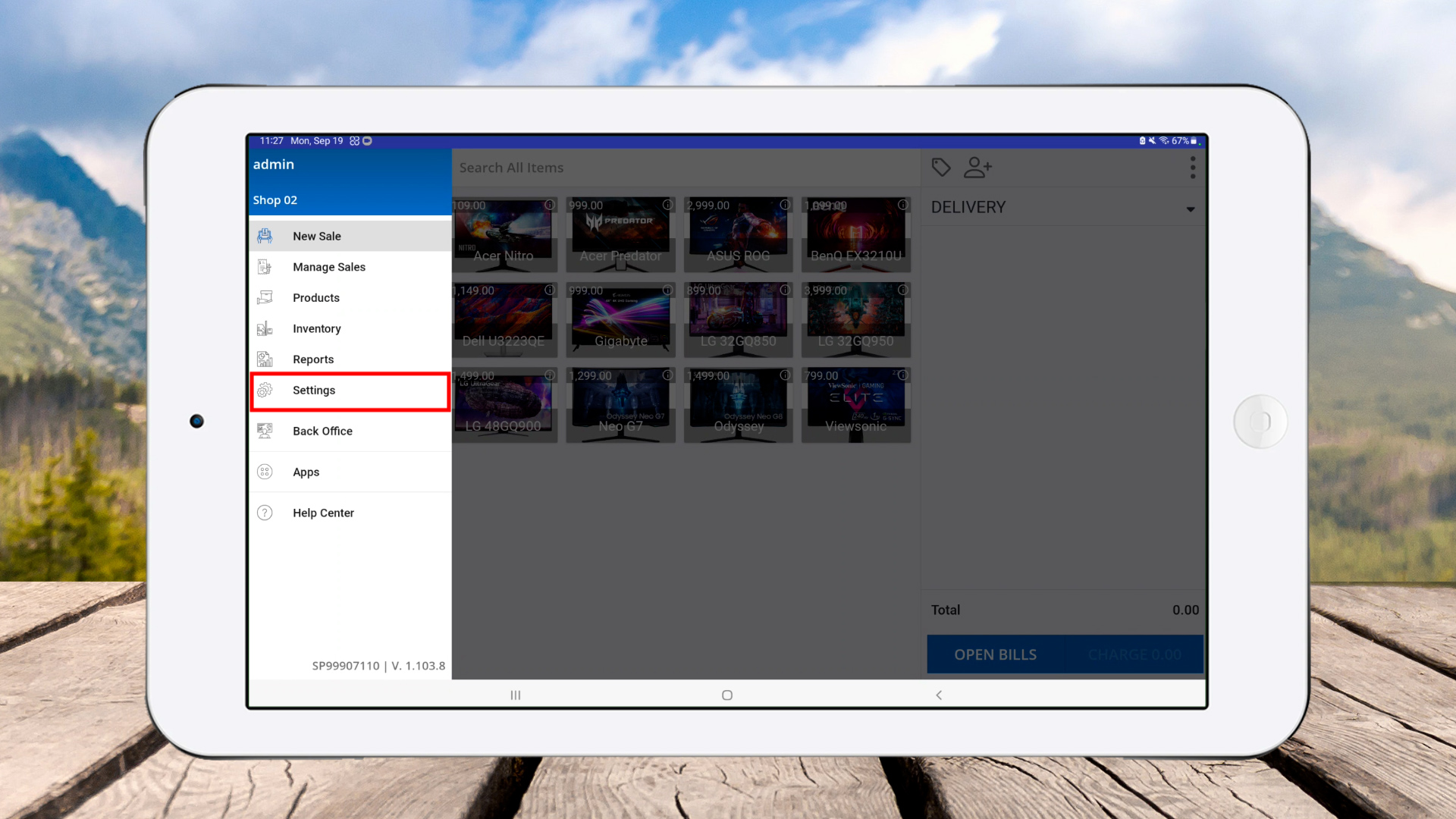
  1. Open SalesPlay POS App and go to Main Menu.


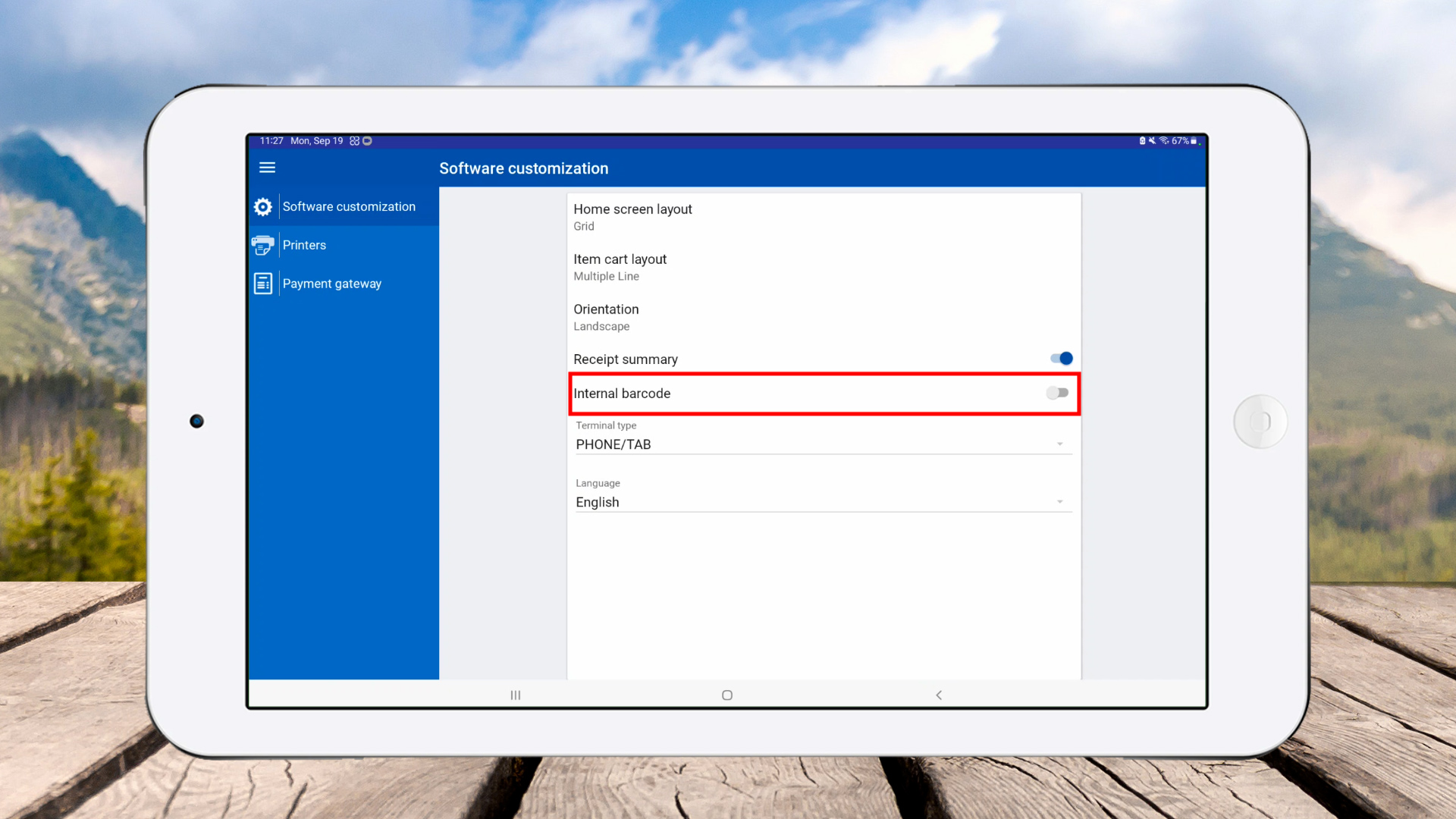
  2. Click ‘Settings’ > ‘Software customization’.


  3. Enable internal barcode scanning by toggling on “Use camera to scan barcode”.


  4. Go back to Main Menu > Click ‘New Sale’.
  5. You will see the barcode icon on the screen, indicating the internal barcode scanner is active.
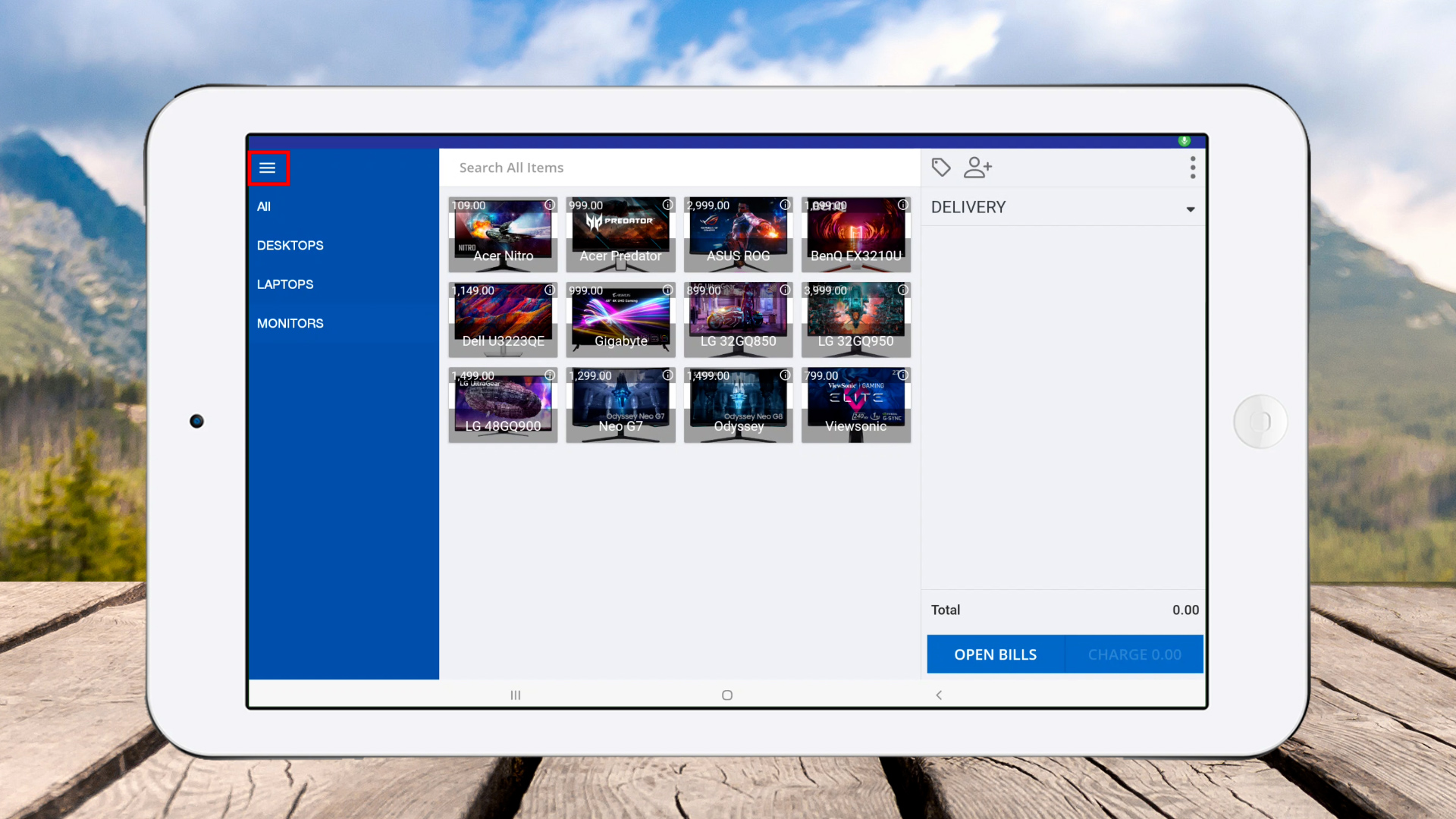
How to Add Barcodes to Products

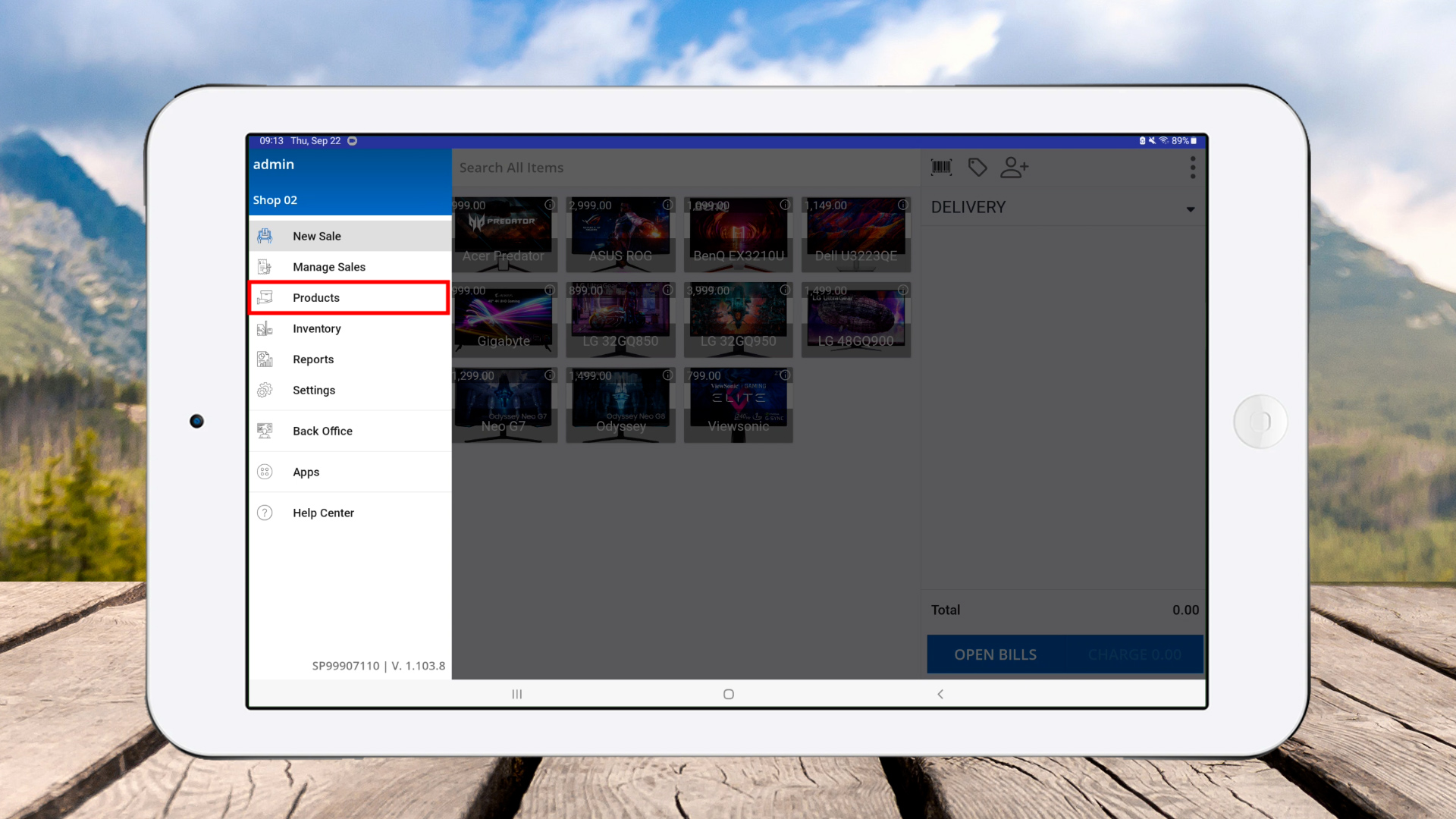
  1. Go to Main Menu > Products.


  2. Click the plus (+) button to add a new product.

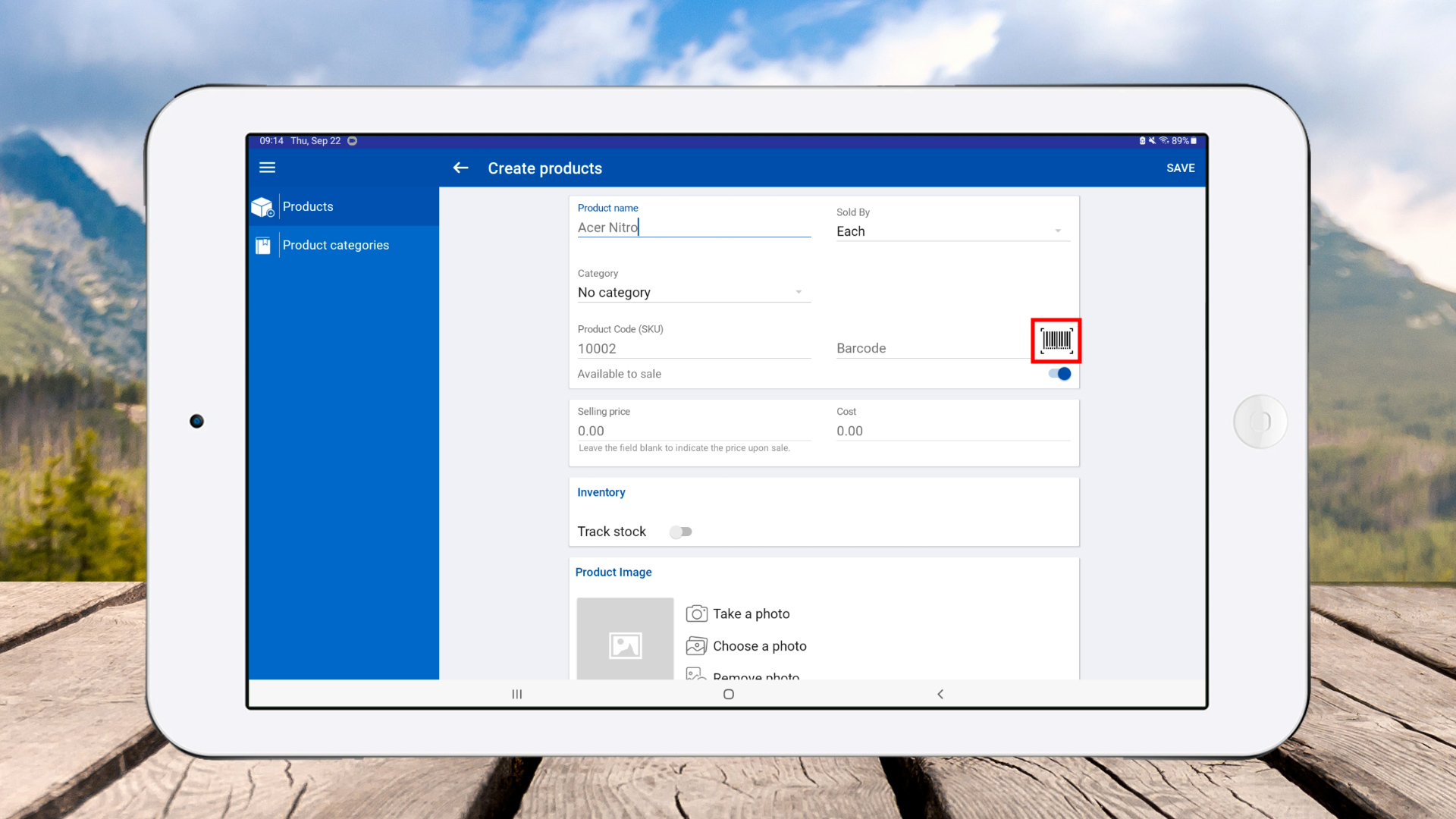
  3. Enter product name > Click the barcode icon.

  4. Scan the barcode for the product.

  5. After scanning, make sure to click ‘Save’ to store the barcode.
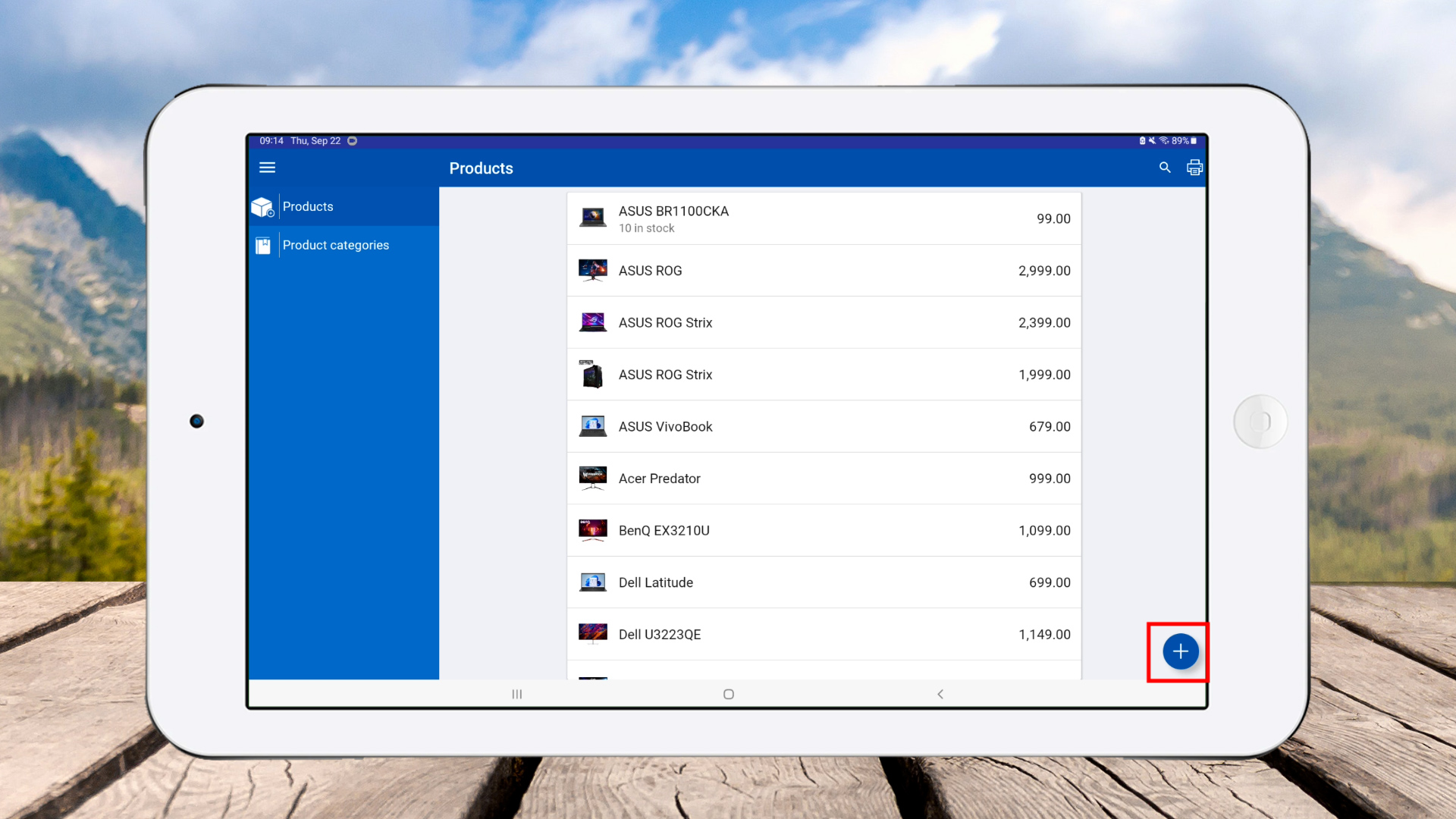
How to Scan Barcodes Using In-Built Camera

  1. Click the ‘Barcode icon’ in POS App.
  2. Scan the product barcode.

  3. Product will be added to the cart successfully.

How to Scan Barcodes Using External Scanner

  1. Connect external barcode readers via Bluetooth or USB.

  2. Open Bluetooth settings on your device.

  3. Scan available devices > Connect the barcode scanner (ensure scanner is in pairing mode).
  4. Once connected, click ‘Done’.
  5. Open SalesPlay POS App > Scan product barcode to add to the cart.

  6. Products are successfully added to the cart.

Was this helpful?

1 Yes  No
Related Articles
  • How to Create a Composite Product
  • How to Create Modifiers
  • How to Print Labels
  • How to Create a Combo Product
  • How to Create Discount Plans Attached to the Receipt
  • How to Use Variants of Products

No luck finding what you need? Contact Us

Popular Articles
  • Issues Caused by Damaged Network Cables
  • POS Dashboard App – Setup Guide
  • How to Set Up Manual Cash Rounding
  • How to Subscribe Add-ons / Modules Employee Management
  • How to Create an Employee
KB Category
  • Affiliate Program
  • Customer Orders
  • Customers
  • Distributor Referral
  • Getting Started
  • Inventory
  • Loyalty
  • Payment
  • Product
  • Reports
  • Sales
  • Settings
  • Setup
  • User
  • Web POS

Still need help?

Contact Us

Our support team is
here for you!

Ask the Community

Connect and get answers
from fellow SalesPlay POS users.

Asset-3-3.webp
  • Privacy Policy
  • Terms & Conditions
  • Return & Refund Policy
Asset-3-3.webp
  • Privacy Policy
  • Terms & Conditions
  • Return & Refund Policy