Video Tutorial
SalesPlay POS allows you to use Embedded Barcodes which carry extra information about products, such as price or weight. Price-embedded barcodes simplify checkout, especially for weighted or packaged items.
What is an Embedded Barcode
- Embedded Barcodes carry additional product data like price or quantity.
- Example: Weighing vegetables at checkout using a barcode that includes weight information.
Types of Embedded Barcodes
- There are two types of embedded barcodes:
- Weight-based:
- Barcode includes product code/SKU and weight information.
- Price-based:
- Barcode includes product code/SKU and product price.
Barcode Profiles
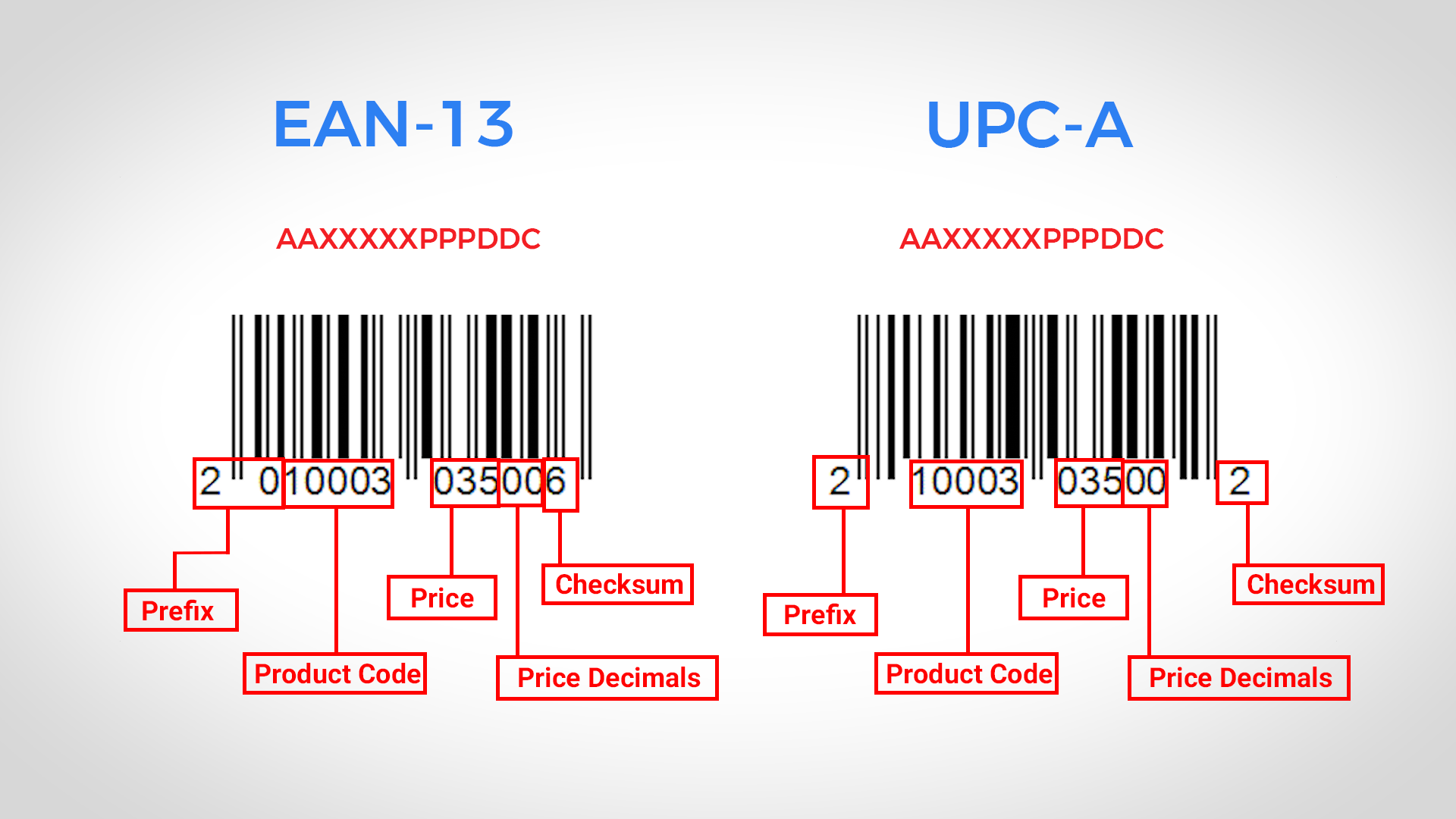
- Two common barcode profiles: EAN 13 and UPC-A.
EAN 13 Setup (13 digits)
- Format: ‘AAXXXXXPPPDDC’.
- ‘AA’ – prefix, ‘XXXXX’ – product code, ‘PPP’ – price, ‘DD’ – price decimals, ‘C’ – checksum.
UPC-A Setup (12 digits)
- Format: ‘AXXXXXPPPDDC’.
- ‘A’ – prefix, ‘XXXXX’ – product code, ‘PPP’ – price, ‘DD’ – price decimals, ‘C’ – checksum.
Steps to Add Price Embedded Barcodes
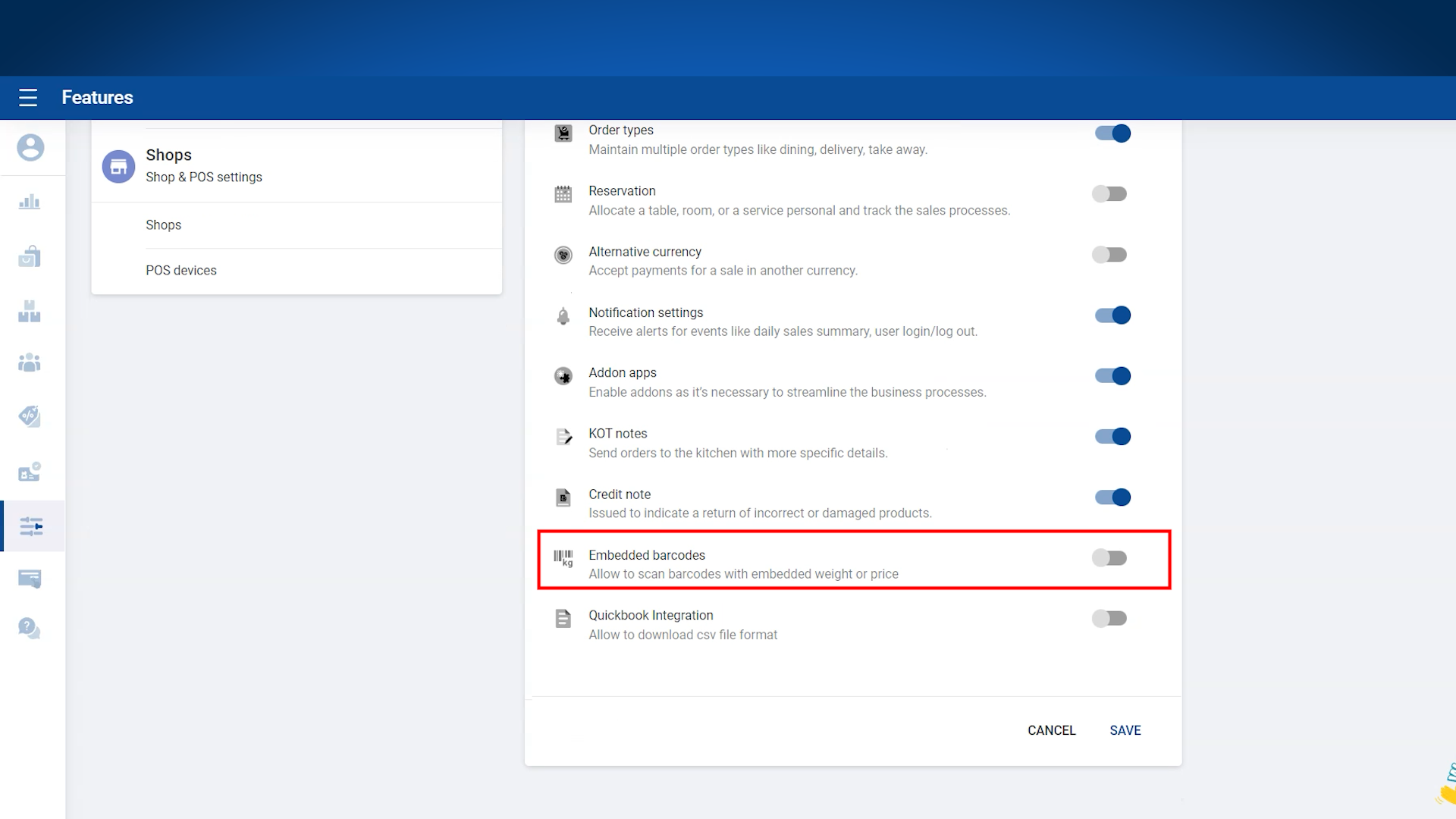
- Login to the POS Back Office Web Portal.
- Select Settings from the main menu.
- Go to Features.
- Enable Embedded Barcode section.
- Click Save. (Embedded Barcode will appear as a sub-menu in Settings)
- Click Embedded Barcodes from the sub-menu.
- Click Add New.
- Select Barcode type as Price Embedded.
- Enter the correct digits for the barcode. (Set PLU value to 0 or leave empty if product codes have 5 digits)
- Enable Status.
- Click Save.
Notes:
- If your product codes have less than 5 digits, configure the PLU value based on the number of digits.
- Always double-check barcode digits to ensure proper scanning and price capture at checkout.