• Point of Sale
  • Categories
    • Getting Started with SalesPlay
    • Web POS
    • Sales
    • Product
    • Inventory
    • User
    • Customers
    • Reports
    • Settings
  • Community
  • Point of Sale
  • Categories
    • Getting Started with SalesPlay
    • Web POS
    • Sales
    • Product
    • Inventory
    • User
    • Customers
    • Reports
    • Settings
  • Community
Home/Knowledge Base/Setup/Standard Table Layout Setup Process in SalesPlay POS

Standard Table Layout Setup Process in SalesPlay POS

February 16, 2026 Updated on February 17, 2026

1. How to Enable Table Layouts

This feature allows businesses to manage reservations for resources such as rooms, tables, and seats, helping to schedule and allocate availability efficiently.

  1. Login to the POS Back Office Web Portal.
  2. Select Settings from the main menu.
  3. Go to the Features section.
  4. Tick the Reservations checkbox.
  5. Click Save.

2. How to Setup Standard Table Layout

  1. Select Table / Room.
  2. Click Add Table / Room.
  3. Click Select Option and choose Standard Layout.
  4. Enter the Table / Room Name.
  5. Select a Type.
  6. Click Save.

Related Help Article: Graphical Table Layout

3. Standard Table Layout in the POS App
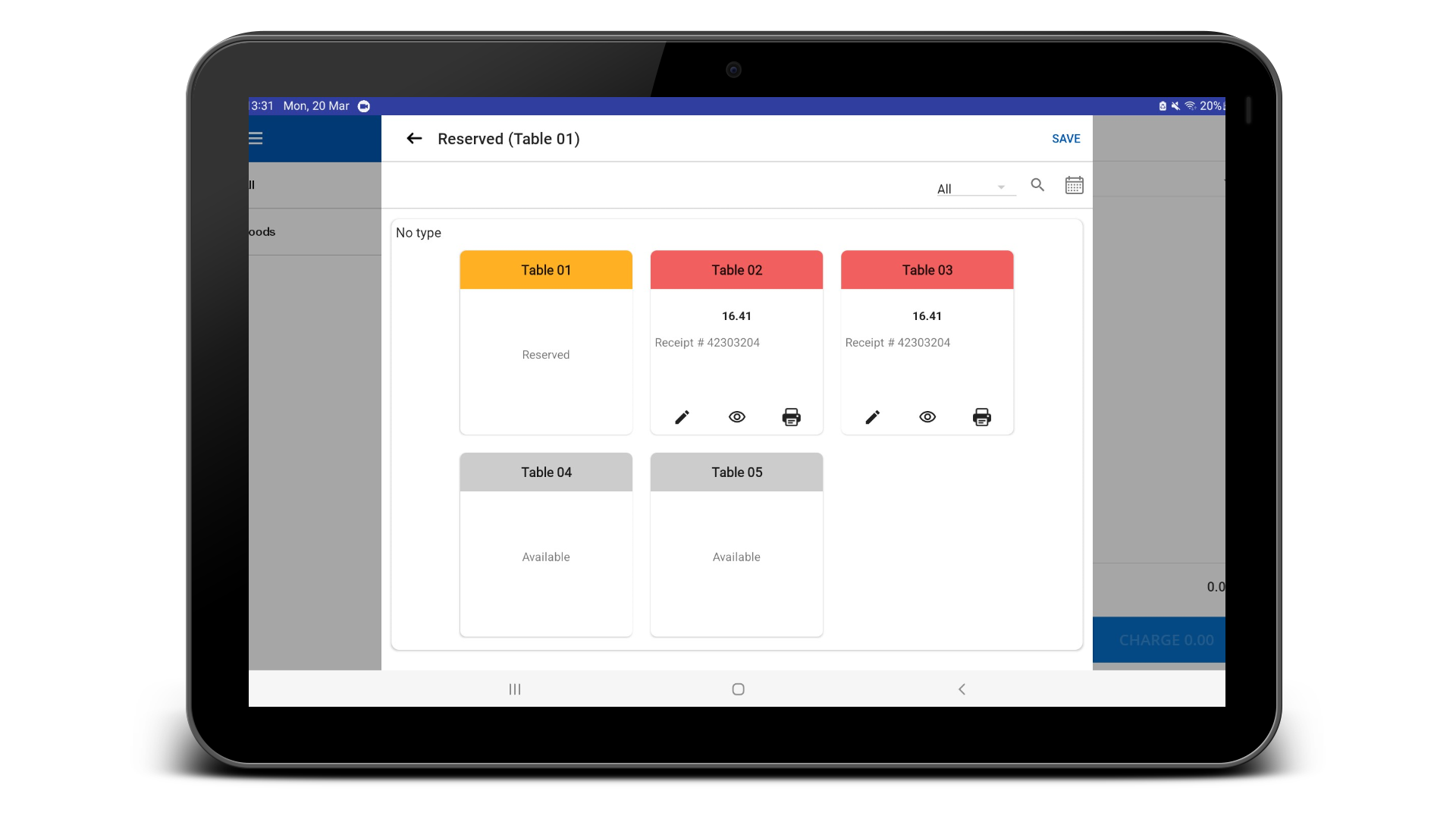


The table status is indicated by different colors:

  • White – Available
  • Red – Occupied
  • Yellow – Reserved

Was this helpful?

1 Yes  No
Related Articles
  • Issues Caused by Damaged Network Cables
  • How to Use Xero Accounting Software with SalesPlay POS
  • How to Print Receipts in Other Languages with SalesPlay POS
  • How to Use Open Bill Sync Option in SalesPlay POS
  • How to Setup Dual Display in SalesPlay POS
  • How to Setup Tablet Ordering System

No luck finding what you need? Contact Us

Popular Articles
  • Set Up Customer Display App
  • Number of Pax Feature
  • SalesPlay iOS POS App (Only Europe Region)
  • Issues Caused by Damaged Network Cables
  • QR Ordering System Guide for SalesPlay POS
KB Category
  • Affiliate Program
  • Customer Orders
  • Customers
  • Distributor Referral
  • Getting Started
  • Inventory
  • Loyalty
  • Payment
  • Product
  • Reports
  • Sales
  • Settings
  • Setup
  • User
  • Web POS

Still need help?

Contact Us

Our support team is
here for you!

Ask the Community

Connect and get answers
from fellow SalesPlay POS users.

Asset-3-3.webp
  • Privacy Policy
  • Terms & Conditions
  • Return & Refund Policy
Asset-3-3.webp
  • Privacy Policy
  • Terms & Conditions
  • Return & Refund Policy