• Point of Sale
  • Categories
    • Getting Started with SalesPlay
    • Web POS
    • Sales
    • Product
    • Inventory
    • User
    • Customers
    • Reports
    • Settings
  • Community
  • Point of Sale
  • Categories
    • Getting Started with SalesPlay
    • Web POS
    • Sales
    • Product
    • Inventory
    • User
    • Customers
    • Reports
    • Settings
  • Community
Home/Knowledge Base/Setup/How to Use Xero Accounting Software with SalesPlay POS

How to Use Xero Accounting Software with SalesPlay POS

February 16, 2026 Updated on February 17, 2026

Why Integrate Xero with SalesPlay POS?

  • Integration provides a comprehensive and streamlined solution for managing financial operations directly from your POS system.

1. Login to POS Back Office

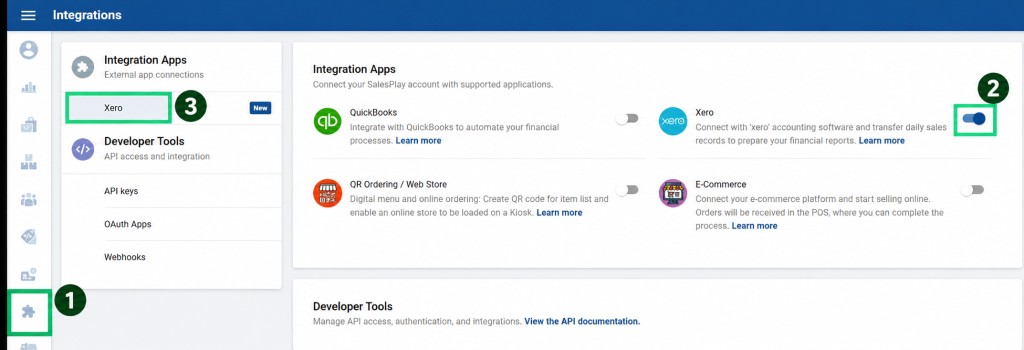
  1. Select Settings from the main menu.
  2. Go to Feature.
  3. Tick Xero Integration.
  4. Click Save.

Note: Once enabled, Xero Integration will appear as a sub-menu under Settings.

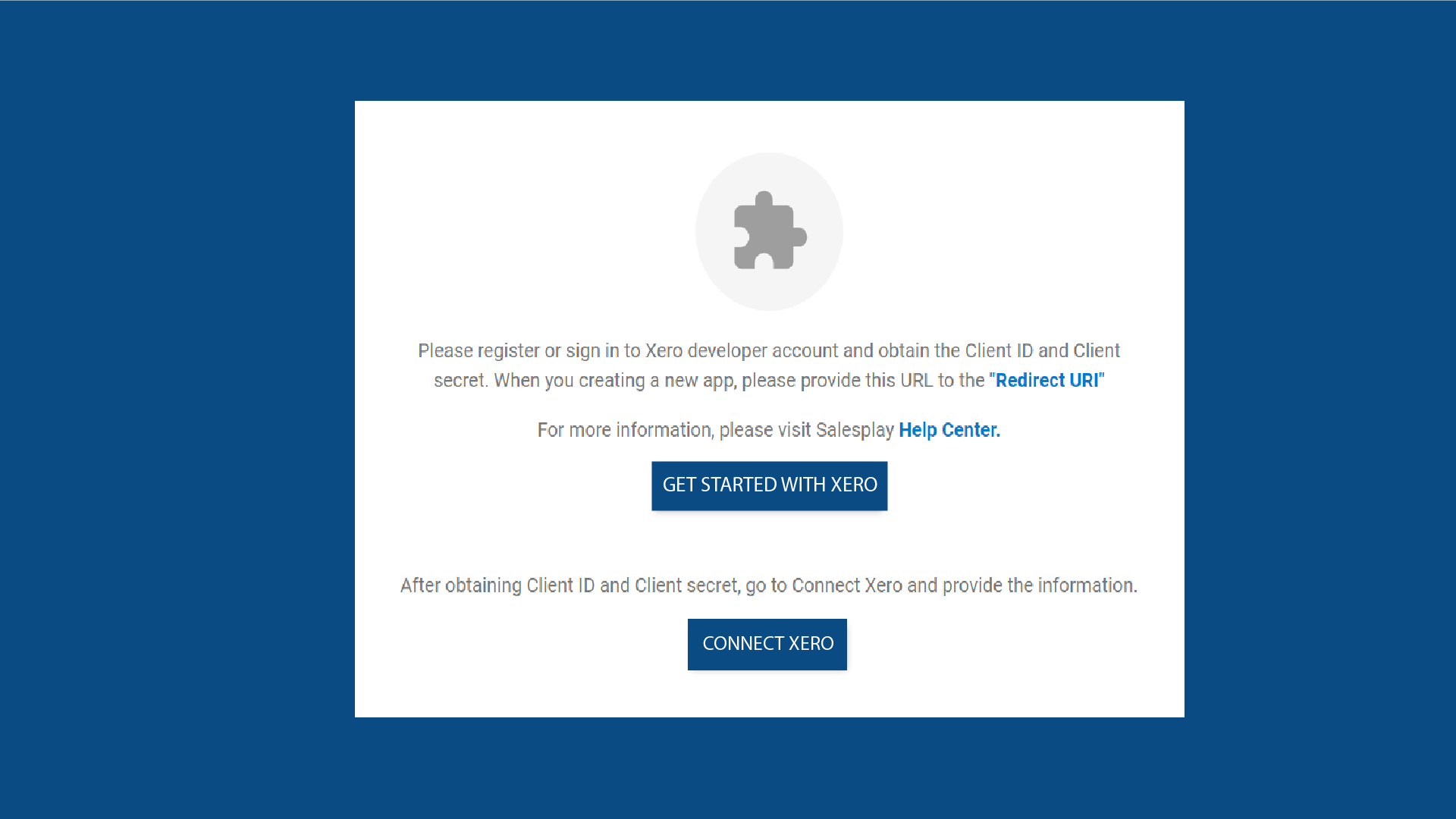
2. Select XERO from Settings and Click “GET STARTED WITH XERO”


3. Register or Sign in to Your Xero Account


  1. Visit https://developer.xero.com/
  2. Click Login and log in to your Xero developer account.
  3. Click New App.

4. Provide Required Details
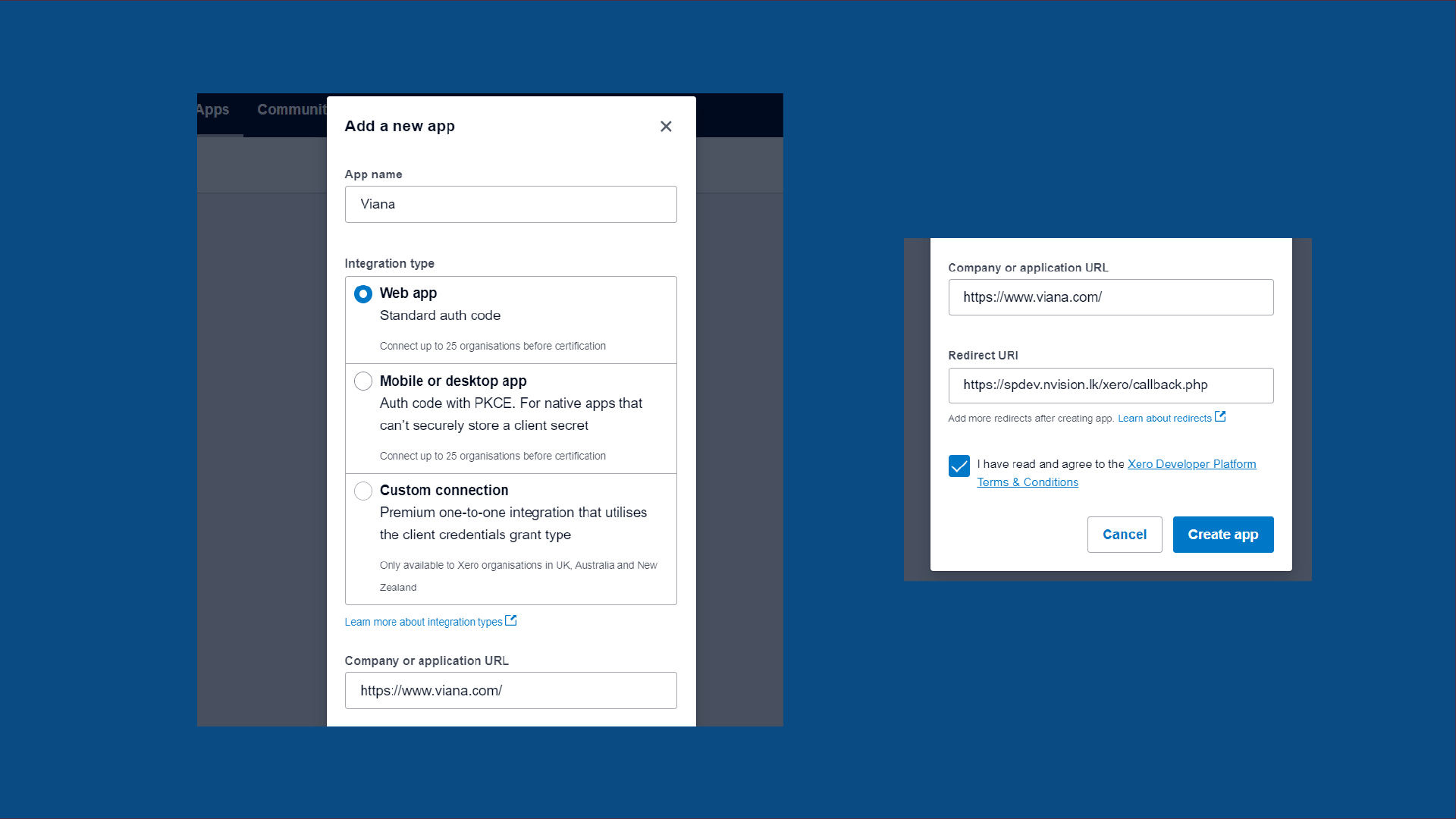


  1. Enter the Shop Name.
  2. Select Web App as the integration type.
  3. Add your company website.
  4. Add Redirect URI (copy from the Back Office Xero section).
  5. Agree to Terms & Conditions and click Create App.

5. Configuration
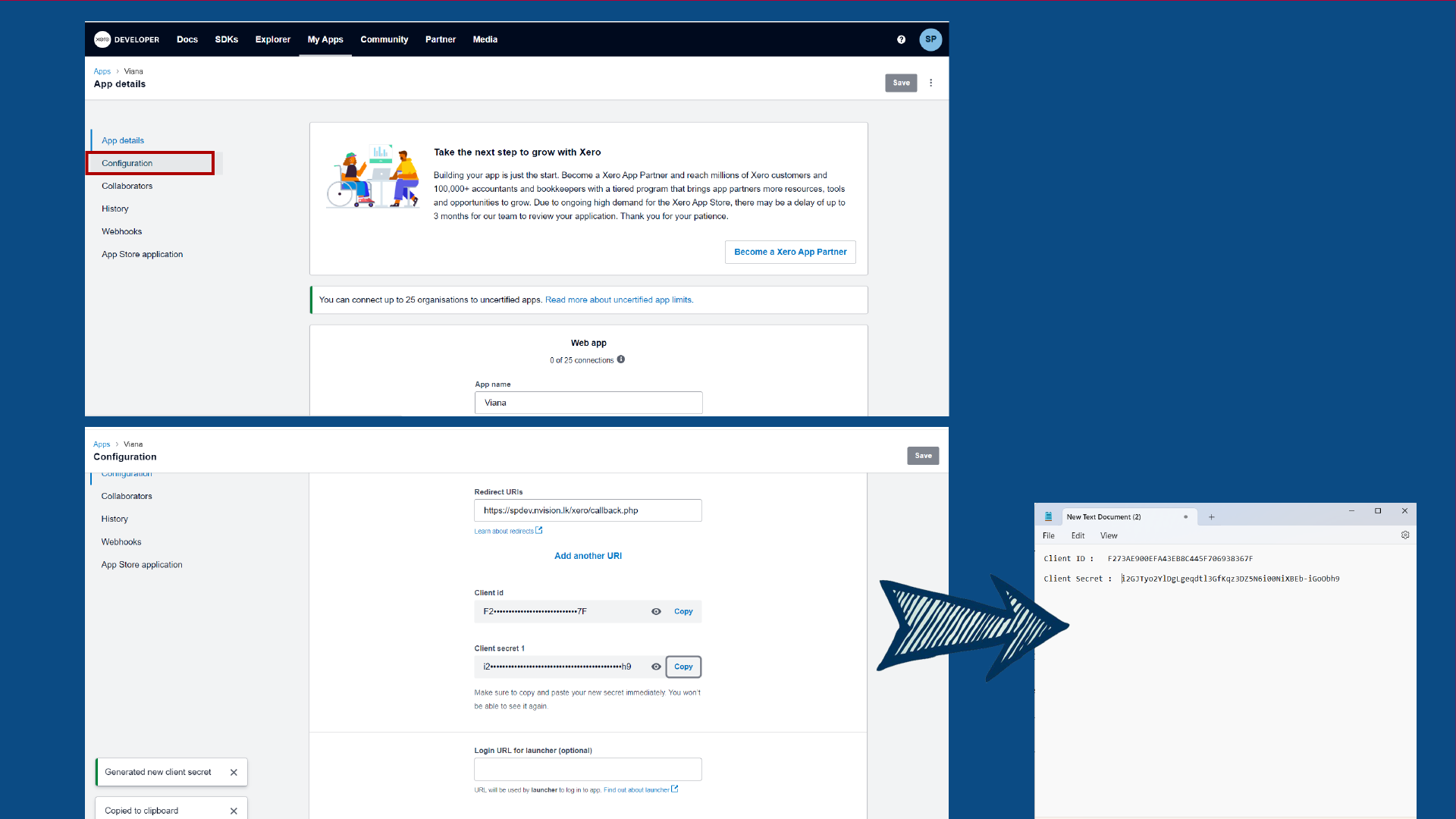


  1. Click the Configuration tab in developer.xero.
  2. Copy the Client ID and save it in a secure document.
  3. Click Generate a Secret.
  4. Copy Client Secret 1 and save it securely.

6. Click “CONNECT XERO” in Back Office
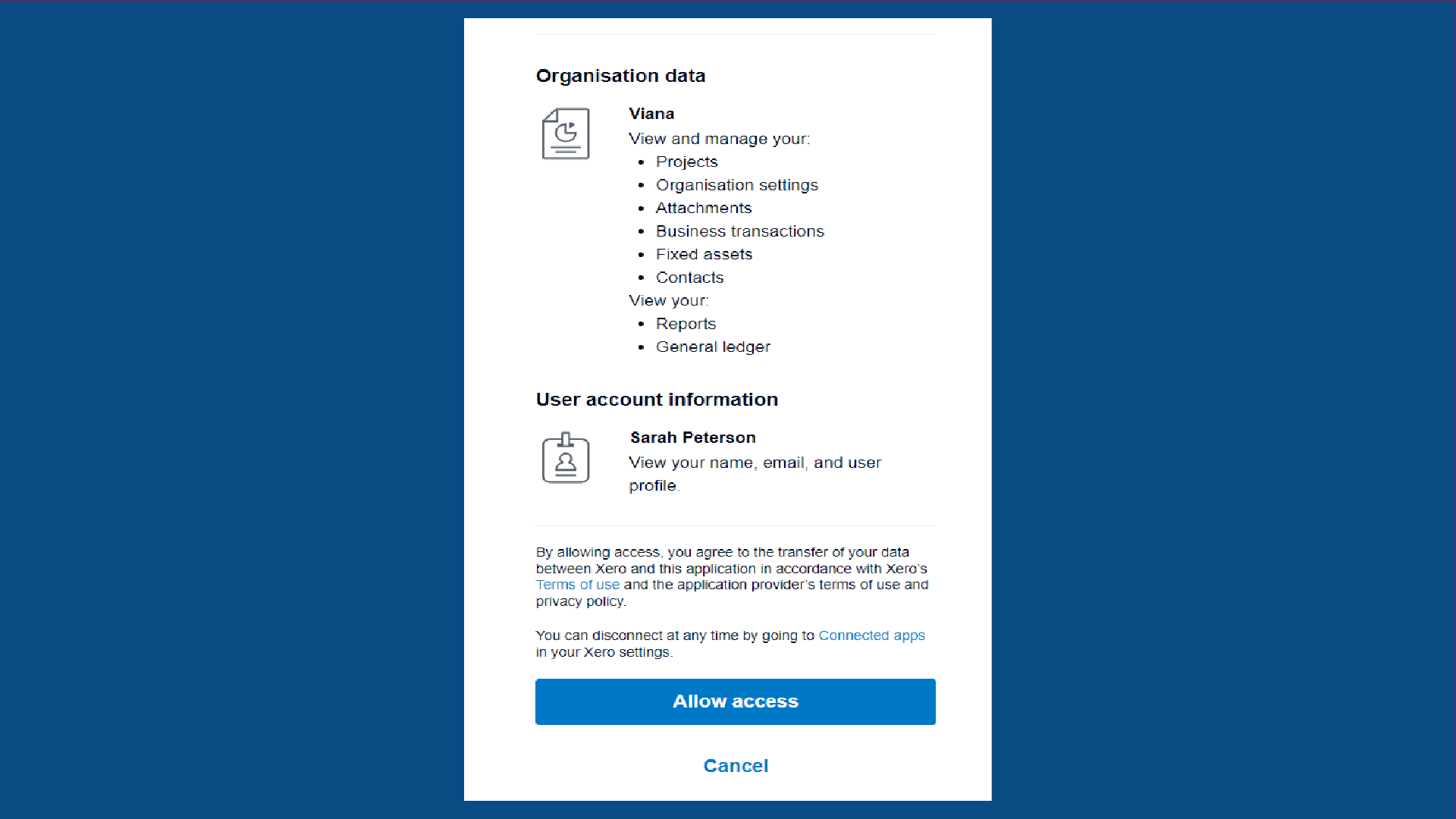


  1. Enter the Client ID (from your saved document).
  2. Enter the Client Secret.
  3. Enter the Transaction Scheduled Time.
  4. Ensure Is Enable is ticked ON.
  5. Click Save.
  6. Click Allow Access.

Once completed, a message will appear: “Integration setup completed”.

Was this helpful?

1 Yes  No
Related Articles
  • POS Dashboard App – Setup Guide
  • Issues Caused by Damaged Network Cables
  • How to Print Receipts in Other Languages with SalesPlay POS
  • Standard Table Layout Setup Process in SalesPlay POS
  • How to Use Open Bill Sync Option in SalesPlay POS
  • How to Setup Dual Display in SalesPlay POS

No luck finding what you need? Contact Us

Popular Articles
  • POS Dashboard App – Setup Guide
  • Issues Caused by Damaged Network Cables
  • How to Subscribe Add-ons / Modules Employee Management
  • How to Create an Employee
  • How to Set Up Manual Cash Rounding
KB Category
  • Affiliate Program
  • Customer Orders
  • Customers
  • Distributor Referral
  • Getting Started
  • Inventory
  • Loyalty
  • Payment
  • Product
  • Reports
  • Sales
  • Settings
  • Setup
  • User
  • Web POS

Still need help?

Contact Us

Our support team is
here for you!

Ask the Community

Connect and get answers
from fellow SalesPlay POS users.

Asset-3-3.webp
  • Privacy Policy
  • Terms & Conditions
  • Return & Refund Policy
Asset-3-3.webp
  • Privacy Policy
  • Terms & Conditions
  • Return & Refund Policy