SalesPlay POS supports integration with Payable, a digital payment solution that enables businesses in Sri Lanka to accept digital payments through supported Payable terminals and payment options.
Follow the steps below to configure Payable with SalesPlay POS.
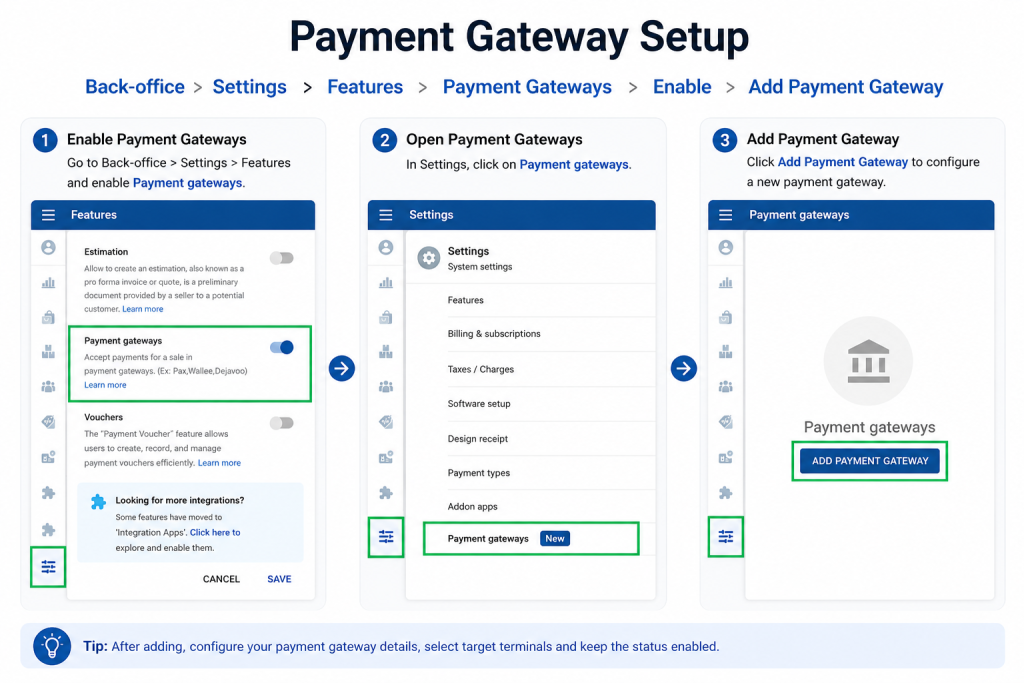
Step 1: Add Payable in SalesPlay Back Office
- Sign in to SalesPlay Back Office.
- Go to Settings > Features.
- Enable Payment Gateways and click Save.
- Go to Settings > Payment Gateways.
- Click Add Payment Gateway.
- Select Payable from the payment gateway list.
- Enter the required details:
- Device Name
- Integration Type – Payable in Device or ECR Integration
- Client ID
- API Key
- Target Terminals
- Click Save.
Step 2: Enable Payable for Payments
- Go to Settings > Payment Types.
- Open an existing payment type or create a new one, such as Card.
- Enable Payment Gateway.
- Select Payable as the payment gateway.
- Click Update.
The payment type is now connected to Payable.
Step 3: Configure Payable in the SalesPlay POS App
- Open the SalesPlay POS App.
- Go to Settings > Payment Gateway.
- Check whether Payable appears in the list.
- If Payable is not listed, tap Sync to synchronize the latest Back Office settings.
- Select Payable and enable its Status.
- Save the changes.
Payable is now configured on the SalesPlay POS App.
Step 4: Process a Payment
- Open New Sale.
- Add the required items to the sale.
- Tap Charge.
- Select the required payment method.
- Select the appropriate Payable payment option.
- Follow the instructions displayed to complete the payment.
- Once the payment is successfully completed, finalize the sale in SalesPlay POS.
Note: The Payable payment options available to you may vary depending on your Payable merchant account, terminal configuration, and enabled services.