SalesPlay is introducing a new and improved UI and navigation upgrade to the Backoffice. Backoffice UI & Navigation Upgrade, launching on October 9, 2026.
A new and improved Backoffice experience is coming with a simpler and more organized layout. Menu names have been updated, a new menu has been added, reports, inventory, settings and features have been reorganized, and some features have been moved to make them easier to find.
The “Switch to New View” or “Switch to Old View” button is located in the top-right corner of the Backoffice.
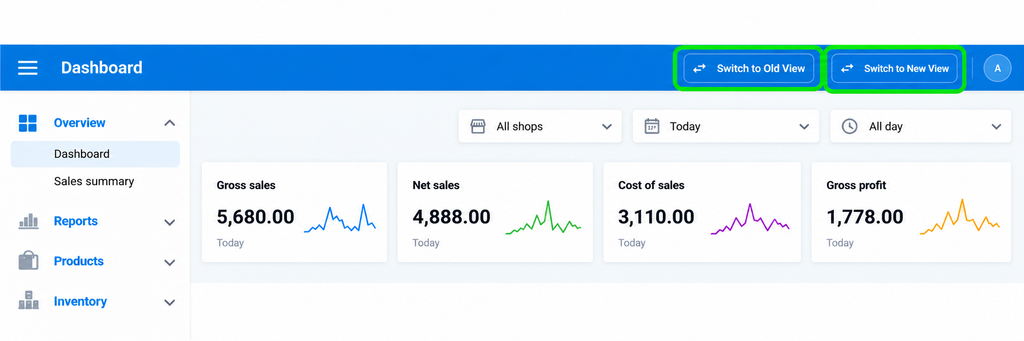
Backoffice Changes at a Glance
Here are the main changes in the new Backoffice:
- New Overview menu – Dashboard and Sales Summary are now available under Overview.
- Menu names changed – Promotions → Discounts & Pricing, and Users → Employee Management.
- Reports reorganized – Reports are grouped into Sales, Orders, Financial, and Audit.
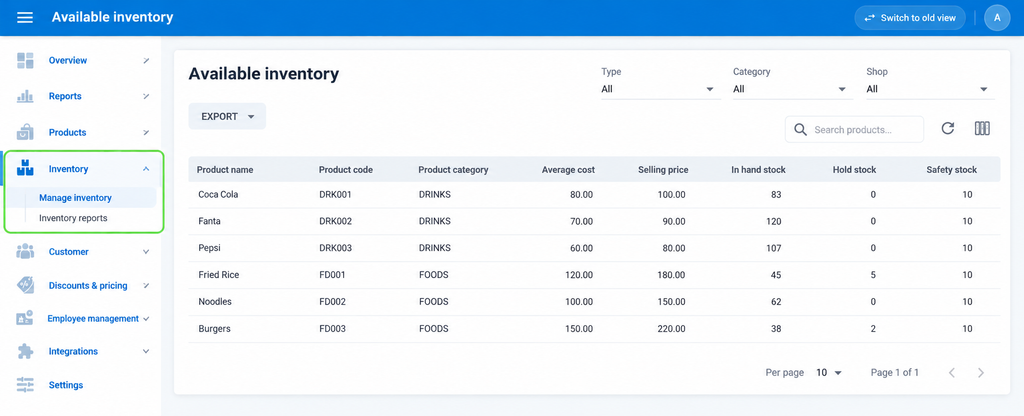
- Inventory reorganized – Inventory is grouped into Manage Inventory and Inventory Reports.
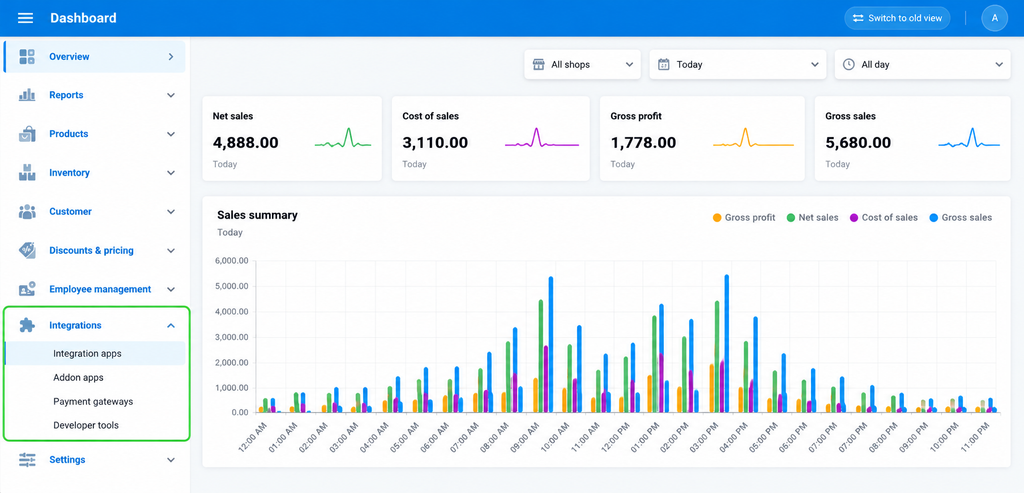
- Integrations reorganized – Includes Integration Apps, Add-on Apps and Payment Gateways
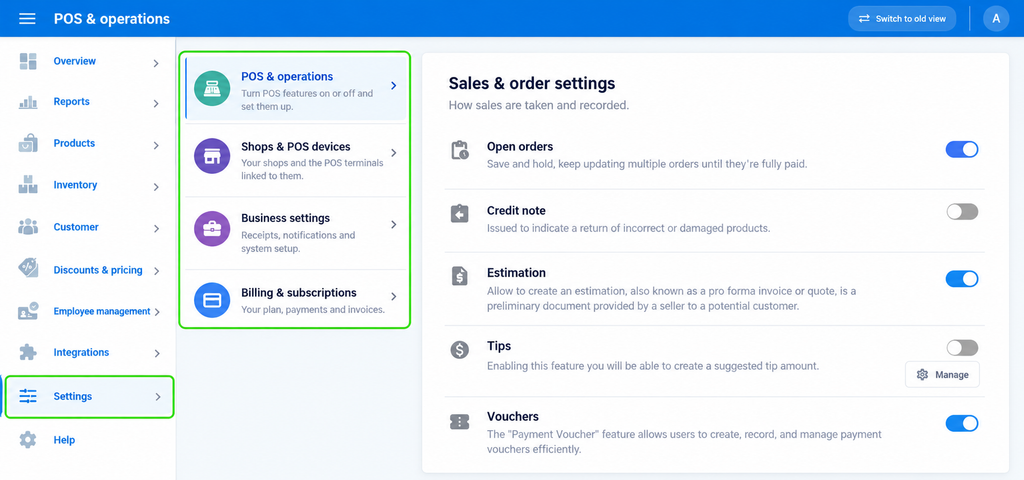
- Settings reorganized – Settings are grouped into POS & Operations, Shops & POS Devices, Business Settings, and Billing & Subscriptions.
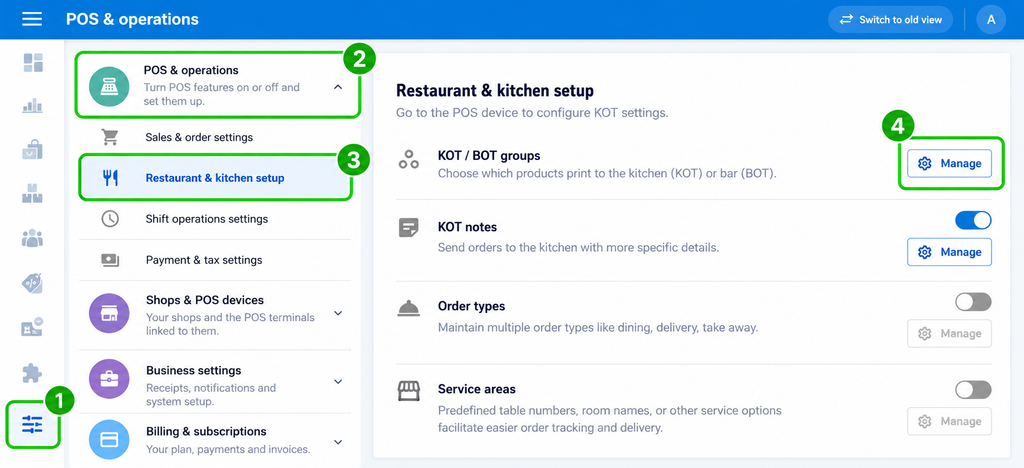
- KOT/BOT Groups moved – Now available under Settings → POS & Operations → Restaurant & Kitchen Setup.
- Payment Gateways moved – Now available under Integrations → Payment Gateways.
- Add-on Apps moved – Now available under Integrations → Add-on Apps.
- My Profile and Logout moved – Now available from the profile icon in the top-right corner.
1. New Overview menu
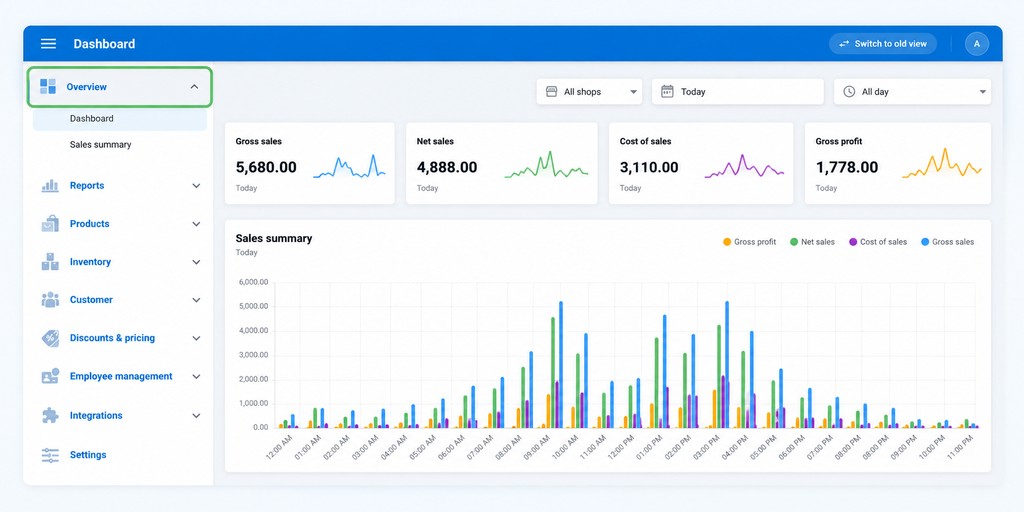
A new Overview section brings Dashboard and Sales Summary together in one place. Earlier, Sales Summary was under Reports.
New path: Backoffice → Overview
What customers will see: Dashboard and Sales Summary are now grouped under Overview.
2. Menu Names Have Changed
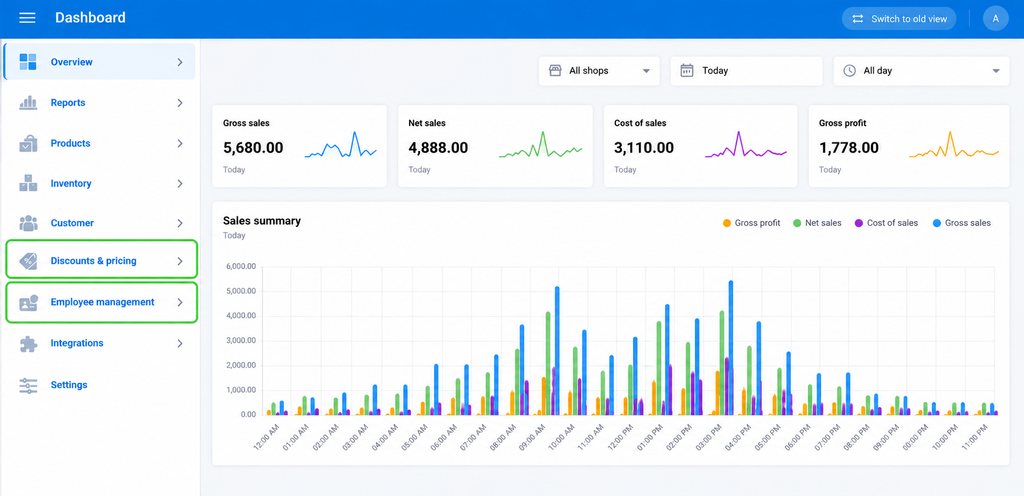
Two menu names have been updated to make their purpose clearer.
Promotions: Promotions is now Discounts & Pricing.
Users: Users is now Employee Management.
3. Reports Are Now Grouped
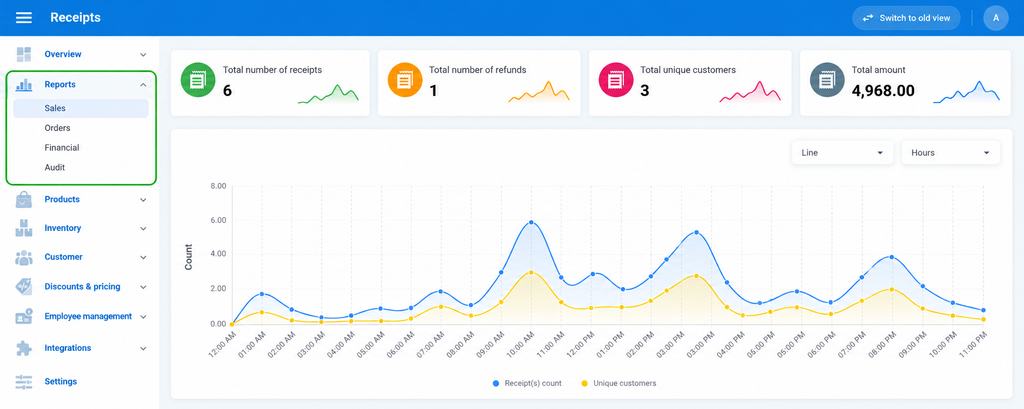
Reports are now arranged into clear categories instead of one long list. This makes it easier to find the right report.
Sales: Sales performance and transaction reports.
Orders: Order-related reports.
Financial: Financial reports.
Audit: System activity and audit reports.
4. Inventory Is Better Organized
Inventory now has two clear groups, so customers can find inventory functions faster.
Manage inventory: Inventory management functions.
Inventory reports: Reports related to inventory.
5. Integrations Are Grouped
The Integrations menu now keeps related connections and tools together.
Integration apps: Apps used for integrations.
Add-on apps: Additional apps connected to the system.
Payment gateways: Payment gateway settings.
Developer tools: Tools for development and integrations.
6. Settings Are Organized Into Sections
Settings are now divided into clearer areas. This makes it easier to find a setting without going through one long list.
- POS & operations: POS and operational settings.
- Shops & POS devices: Shop and POS device settings.
- Business settings: General business settings.
- Billing & subscriptions: Billing and subscription settings.
7. KOT/BOT Groups Moved
KOT/BOT Groups are now easier to find under Restaurant & Kitchen Setup.
New path: Settings → POS & operations → Restaurant & Kitchen Setup.
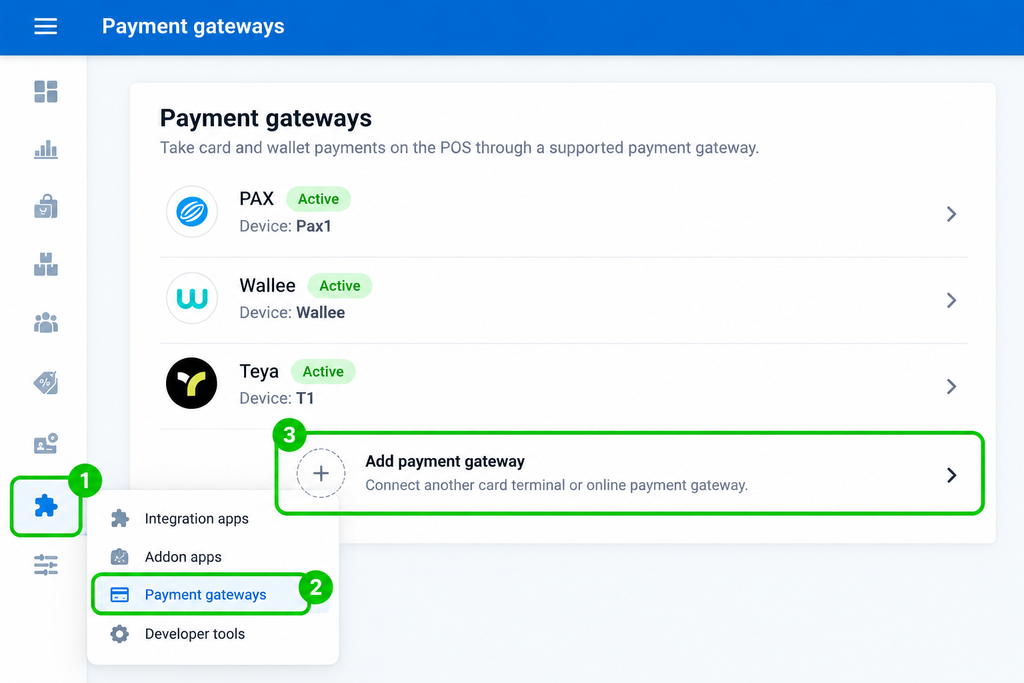
8. Payment Gateways Moved
Payment gateway settings are now under Integrations, together with other external connections.
New path: Backoffice → Integrations → Payment gateways.
Partner guidance: Customers should look under Integrations when they need to configure a payment gateway.
9. Add-on Apps Moved
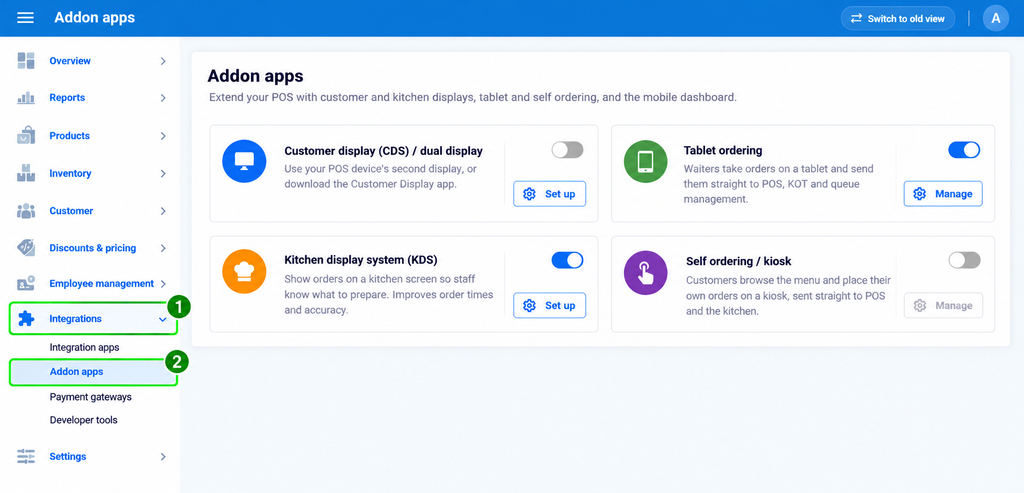
Add-on Apps are now managed under Integrations. This keeps apps and integration-related settings together.
New path: Backoffice → Integrations → Add-on apps.
10. My Profile and Logout Moved
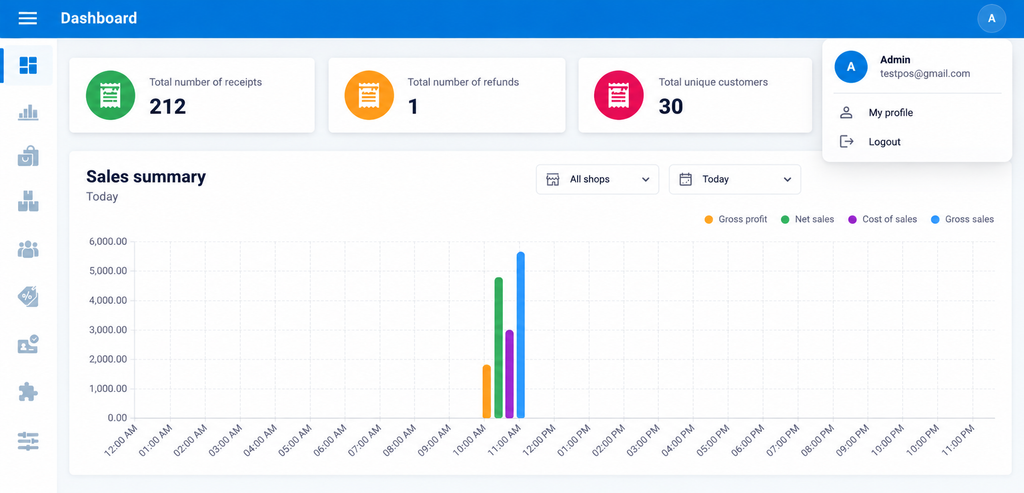
The user profile menu is now available from the top-right corner of the Backoffice.
Step 1: Click the profile circle in the top-right corner.
My profile: Use My profile to open profile options.
Logout: Use Logout to sign out.
Then & Now — Quick Comparison
Use this table as a quick reference when explaining the navigation update to partners and customers.
| Area | Then | Now |
| Navigation | Dashboard and Sales Summary were separated. | Dashboard and Sales Summary are grouped under Overview. |
| Menu names | Promotions and Users. | Discounts & Pricing and Employee Management. |
| Reports | Reports were presented as a longer list. | Reports are grouped into Sales, Orders, Financial, Advanced and Audit. |
| Inventory | Inventory functions were in a longer dropdown. | Manage inventory and Inventory reports are grouped. |
| Integrations | Integration-related items were more spread out. | Integration apps, Add-on apps, Payment gateways and Developer tools are grouped. |
| Settings | Settings and feature-related options were less grouped. | POS & operations, Shops & POS devices, Business settings and Billing & subscriptions are grouped. |
| KOT/BOT Groups | Available under Add-on Apps. | Settings → POS & operations → Restaurant & Kitchen Setup. |
| Payment gateways | Previously located outside the new Integrations path. | Integrations → Payment gateways. |
| Add-on Apps | Previously located outside the new Integrations path. | Integrations → Add-on apps. |
| Profile / Logout | Available from the previous profile navigation. | Available from the top-right profile menu. |