The Drawer Transactions feature in SalesPlay POS helps businesses efficiently manage cash-related activities. It streamlines recording inflows and outflows from the cash drawer or cash box, including expenses, bill payments, and supplier payments, providing better overall financial management.
Example
If a user needs to pay $10 to a supplier for new items, they withdraw the amount from the cash drawer using the POS system.
How It Works
- Users can create and define specific reasons for each transaction.
- Cash-related transactions such as supplier payments, staff wages, utility bills, donations, or other relevant expenses or income can be easily recorded.
- The feature supports both pay-in and pay-out transactions.
- At the end of a shift, users can perform a shift-end operation to tally the available cash balance and reconcile the cash drawer.
- The POS system provides a summary of all transactions during the shift, helping identify discrepancies.
How to Activate and Perform Drawer Transactions
The Drawer Transactions feature enhances cash management by giving businesses a reliable tool to monitor and control cash-related activities.
Within Back Office
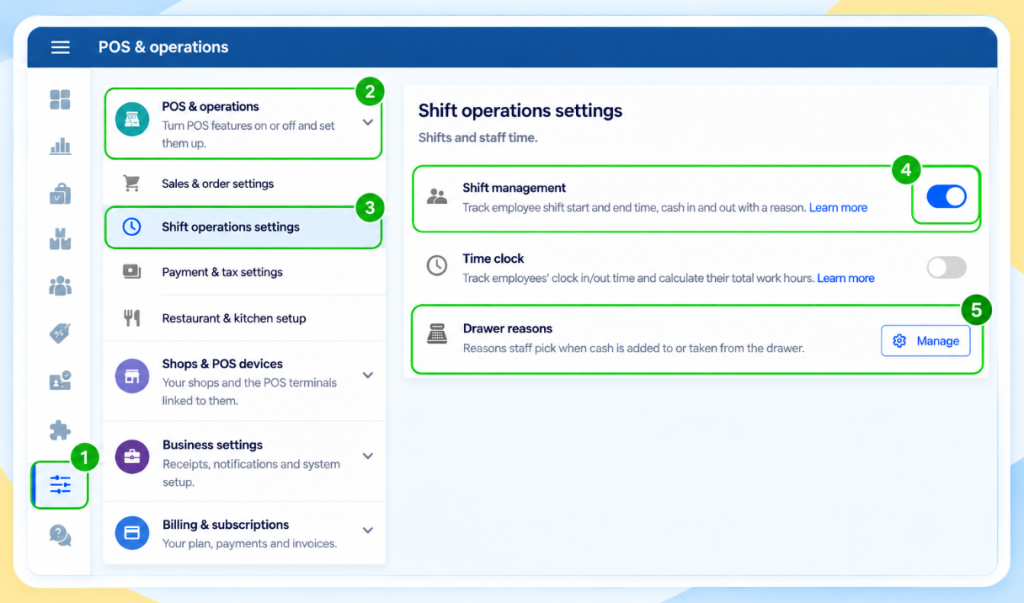
- Log in to the POS Back Office Web Portal.
- Select Settings from the main menu.
- Go to the “POS & operations” section and then “Shift operations settings”
- Tick ON the “Shift Management” button.
- After enabling Shift Management, a new option, Drawer Reasons, will appear in the bottom.
- Select the Drawer Reasons section and click the “Manage” button
- Click Add Drawer Reasons, enter the reason name, and click Save.
Within POS App
- Open the POS App main menu.
- Select Manage Sale.
- Click Cash Management.
- Select Drawer Reasons.
- Enter the Cash-in or Cash-out amount.
- Select a reason from the dropdown.
- Click Pay In or Pay Out and proceed.