SalesPlay POS integrates with over 15 payment gateways and payment solutions globally, helping businesses accept secure card and digital payments directly from the POS.
With integrated payment solutions, you can process payments faster, reduce manual entry, and keep payment records synchronized with sales transactions.
Supported Payment Solutions
SalesPlay POS currently integrates with:
- PAX
- Wallee
- Dejavoo
- PhonePe
- Payable
- PAIDChain
- Gkash
- Paystack
- Teya
- Valor
- Dynamic QR (UPI)
- EcoCash
- SmileCash
- Linkly
- Omari
- Innbucks
- Stripe
- Paydibs
Payment availability may vary by country, merchant account, provider, and supported hardware or payment method.
Local and Global Payment Options
SalesPlay POS supports both country-specific and global payment solutions, allowing businesses to choose payment providers suitable for their market and customers.
Flexible Payment Methods
Depending on the payment provider, customers may be able to pay using cards, digital wallets, QR payments, or other supported payment methods.
How to Set Up and Process Payments with a Payment Gateway
Use the following general process to configure and use an integrated payment gateway.
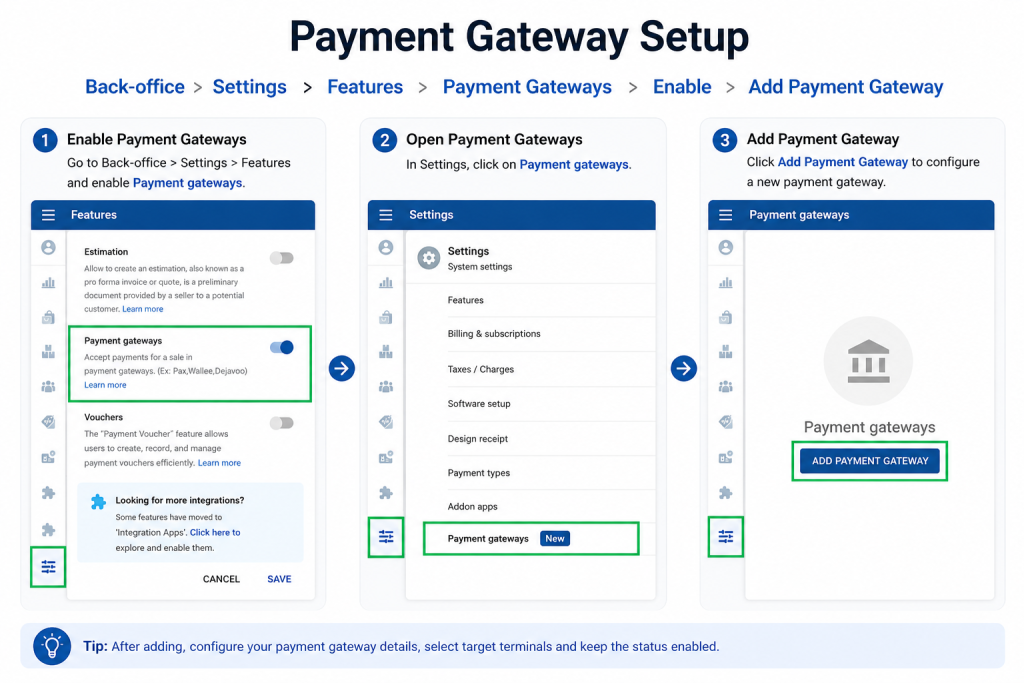
Step 1: Add the Payment Gateway
- Sign in to the SalesPlay Back Office.
- Go to Settings > Features.
- Enable Payment Gateways and click Save.
- Go to Settings > Payment Gateways.
- Click Add Payment Gateway.
- Select the required payment gateway.
- Enter the credentials and configuration details provided by the payment provider.
- Select the required payment methods, if applicable.
- Select the Target Terminals that will use the payment gateway.
- Make sure the Status is enabled.
- Click Save.
Note: The information required during setup depends on the payment gateway. You may need credentials such as a merchant ID, terminal ID, username, password, API credentials, or other provider-specific details.
Step 2: Connect the Payment Gateway to a Payment Type
- Go to Settings > Payment Types.
- Open the payment type you want to connect.
- Enable Payment Gateway.
- Select the configured payment gateway.
- Click Update.
The payment type is now connected to the selected payment gateway.
Step 3: Sync the POS App
- Open the SalesPlay POS App.
- Go to Settings > Payment Gateway.
- Check that the configured payment gateway is displayed.
- If the gateway is not displayed, tap Sync to synchronize the latest Back Office settings.
- Select the payment gateway.
- Make sure the gateway is enabled.
- Save the settings.
The payment gateway is now ready to be used from the POS.
Step 4: Process a Payment
- Open a New Sale.
- Add the required products or services.
- Tap Charge.
- Select the connected payment type.
- Select the required payment method, if multiple options are available.
- Follow the instructions shown on the payment terminal, gateway, or customer payment device.
- Wait for the payment to be approved.
- Once the transaction is successful, complete the sale.
The payment and sales transaction are recorded in SalesPlay POS.
Important
The payment process and available payment methods can vary between providers. Some integrations may require a physical payment terminal, while others may support digital, QR, wallet, or online payment methods.
For provider-specific setup instructions, follow the configuration requirements provided for that particular payment gateway.