What is an Embedded Barcode
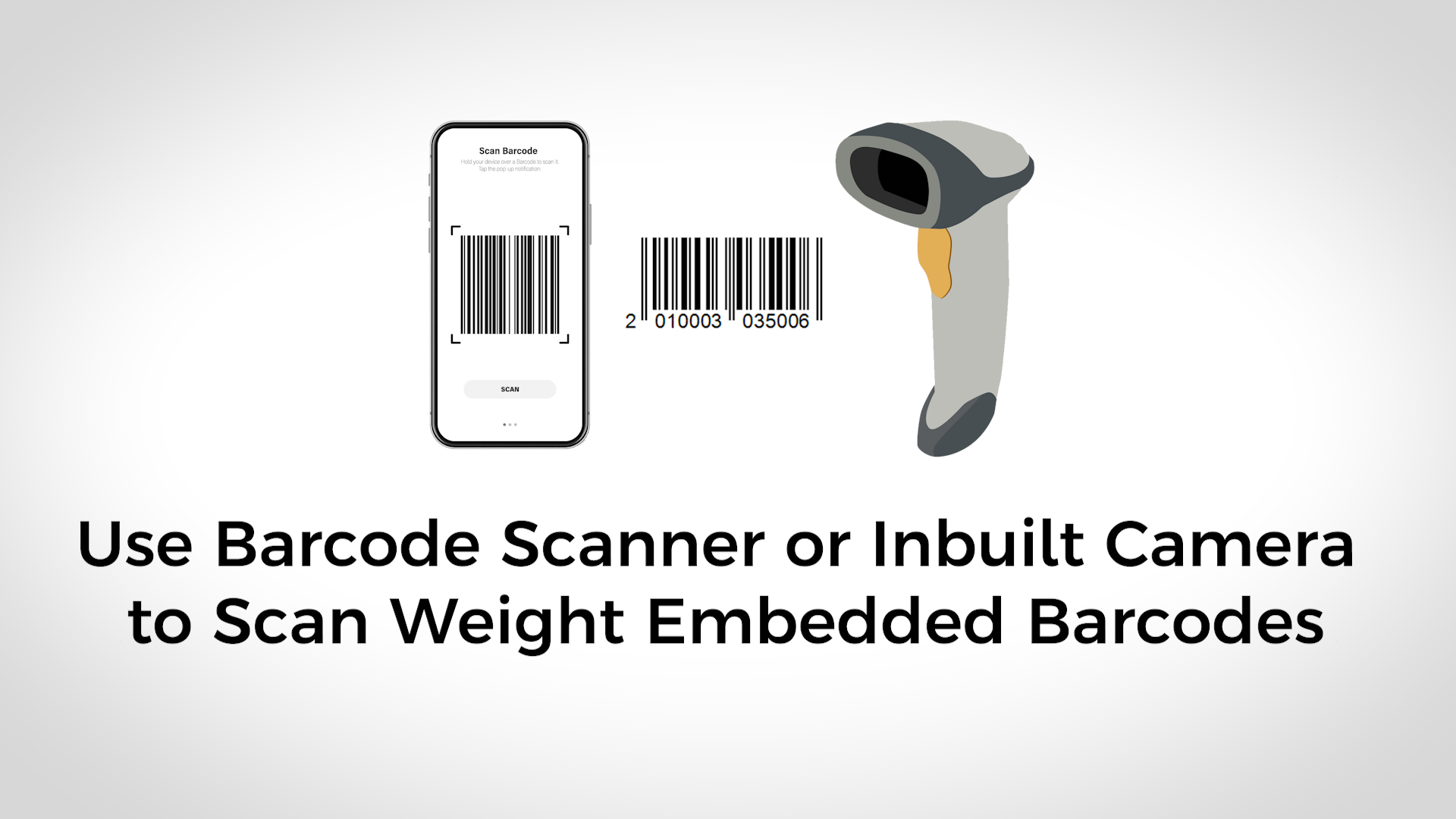
- Embedded barcodes carry extra product information such as price, quantity, or weight.
- Example: Weighing vegetables at checkout.
- Weight scales print barcodes with product name, quantity, and price.
Types of Embedded Barcodes
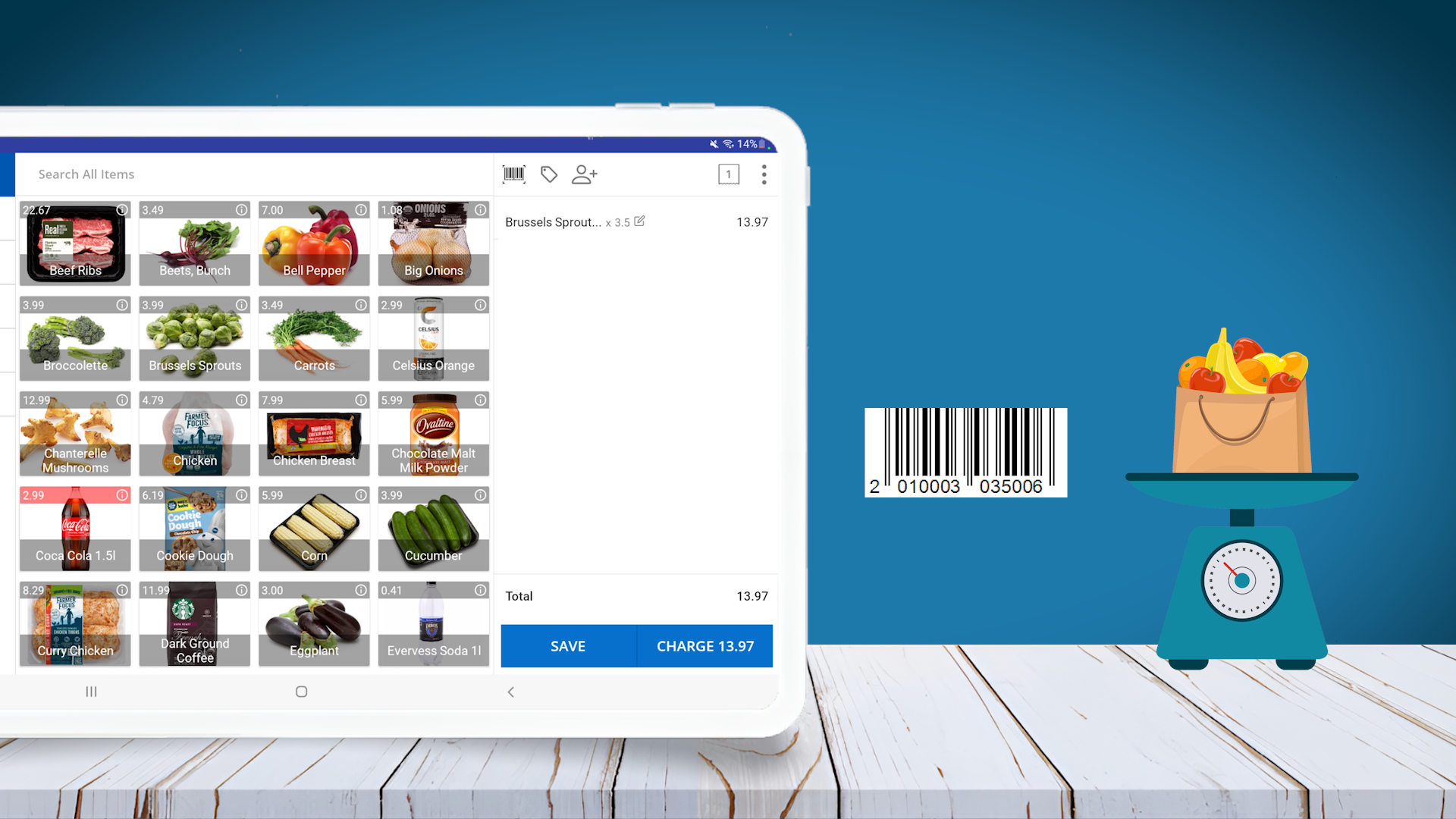
There are two types of embedded barcodes:
- Weight-based:
- Barcode includes product code/SKU and weight information.
- Price-based:
- Barcode includes product code/SKU and product price.
Barcode Profiles
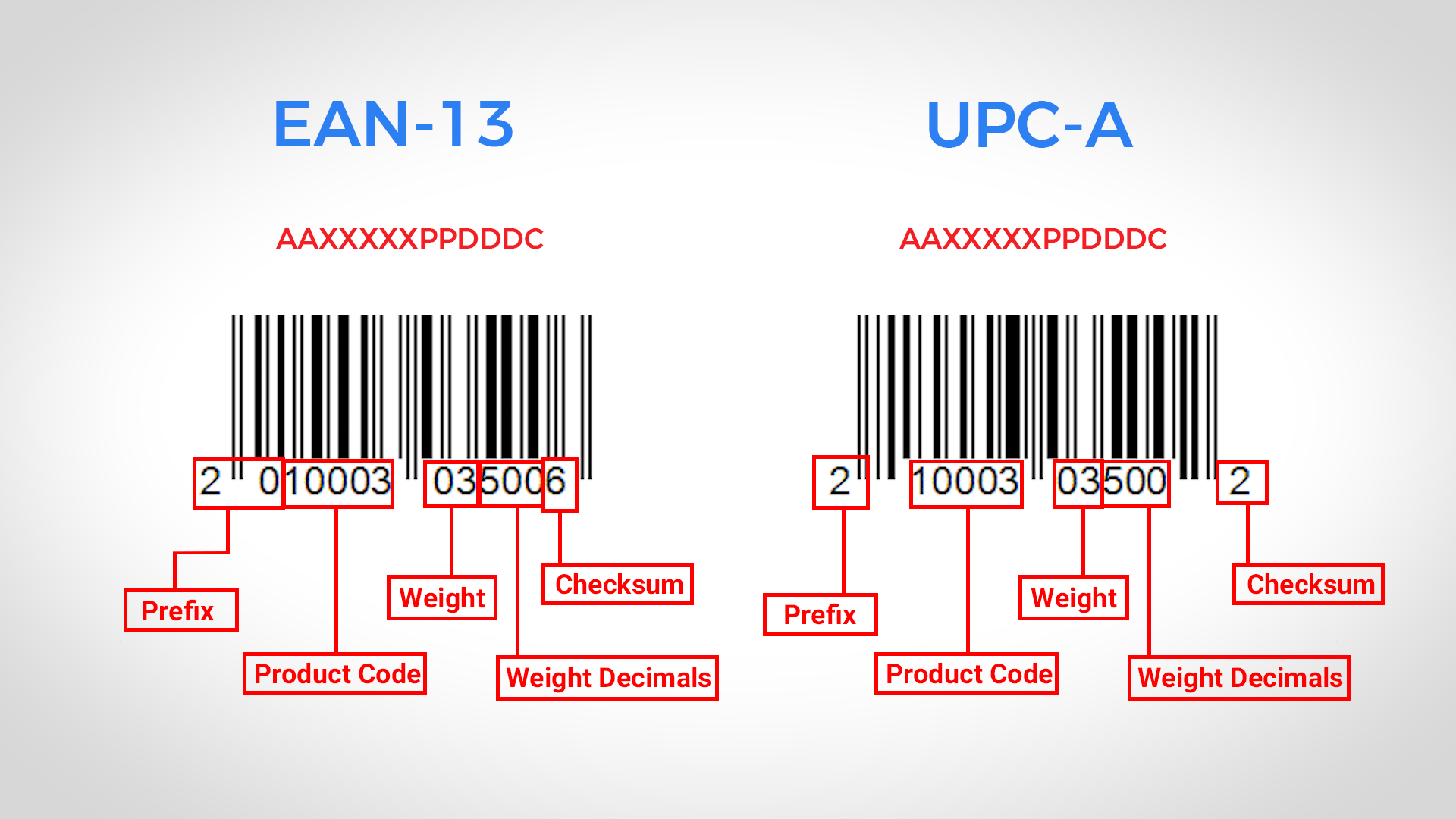
- Two common barcode profiles: EAN 13 and UPC-A.
EAN 13 Setup (13 digits)
- Format: ‘AAXXXXXPPDDDC’
- ‘AA’ – prefix, ‘XXXXX’ – product code, ‘PP’ – weight, ‘DDD’ – weight decimals, ‘C’ – checksum.
UPC-A Setup (12 digits)
- Format: ‘AXXXXXPPDDDC’
- ‘A’ – prefix, ‘XXXXX’ – product code, ‘PP’ – weight, ‘DDD’ – weight decimals, ‘C’ – checksum.
How to Activate Embedded Barcodes
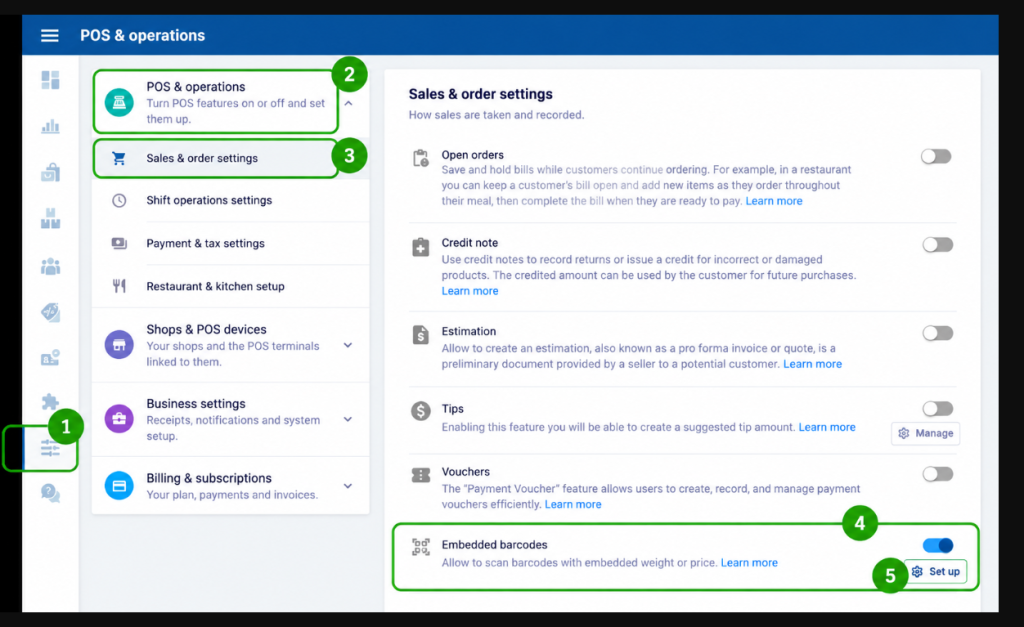
- Log in to POS Back Office Web Portal.
- Select Settings > POS & Operations > Sales & Order Settings
- Enable the Embedded Barcode section.
- Click “Set up”
How to Set Up Embedded Barcodes
- Select Backoffice > Settings > POS & Operations > Sales & Order Settings
- Click the “Set Up” button near Embedded Barcodes
- Select a Barcode profile (EAN 13 or UPC-A).
- Select Barcode type as Weight Embedded.
- Enter the correct barcode digits. (Set PLU value to 0 or leave empty if product codes have 5 digits)
- Enable Status.
- Click Save.
Notes:
- If your product codes are less than 5 digits, configure the PLU value based on the number of digits.
Updating Product Measurements and Prices for Weighted Barcode Scanning
After setting up the weight-embedded barcode profile, update your products accordingly.
Steps:
- Edit the product details in POS system.
- Change Measurement from “Sold by Each” to the appropriate unit (Kg, Litre, etc.).
- Set Regular Unit Price based on the chosen measurement unit.
Examples:
- Beans (Product Code: 10003)
- Measurement: Kg
- Regular Unit Price: 20 per Kg
- Sunflower Oil
- Measurement: Litre
- Regular Unit Price: 50 per Litre
This ensures POS correctly calculates prices for items sold by weight or volume.
What is PLU
PLU (Price Look-Up code) helps identify product codes with fewer than 5 digits. The “Number of Digits for PLU” tells POS how many digits in the barcode are the product code.
When to use PLU:
If product codes are less than 5 digits, adjust the PLU setting accordingly.
Example 1: 3-digit Product Codes
- Product: Pumpkin
- Product Code: 145
- Set PLU as 2
Example 2: 4-digit Product Codes
- Product: Tomato
- Product Code: 1005
- Set PLU as 1
Important Notes:
- If product codes are 5 digits or more, set PLU as 0.
- For custom barcode formats, go to Settings > Barcode Profile > Add New.
- Default formats (EAN-13, UPC-A) cannot be edited; create new profile for custom formats.
Troubleshooting Weight Embedded Barcodes
If you’re facing issues, possible reasons include:
- Scale printing incorrect barcode format.
- Incorrect product codes in POS system.
- Product codes from scale do not match POS system.
- Barcode profile incorrectly configured in back office.
- Product measurement type not set correctly (still “Sold by Each”).
- Regular unit price entered incorrectly.
- Product still using default measurement instead of correct unit (Kg, Litre, etc.).