An Estimation is a document that shows a customer the expected price of products or services before they make a purchase. It is also called a quote or quotation. With SalesPlay, you can quickly create and send professional estimates to customers.
Example
A customer wants to buy 10 office chairs. Before confirming the order, you can create an estimate that includes:
- Product name
- Quantity
- Price
- Discount
- Validity period
- Comments
- Terms and conditions
The customer can review the estimate and decide whether to proceed with the purchase.
Estimation makes it easier to communicate prices clearly and manage potential sales.
How to Enable Estimation
- Log in to POS Back Office Webportal.
- Select Settings from the main menu.
- Go to the “POS & operations” section and then “Sales & order settings.”
- Tick ON the Estimation button.

How to Create and Send an Estimate
- Log in to the Back Office web portal.
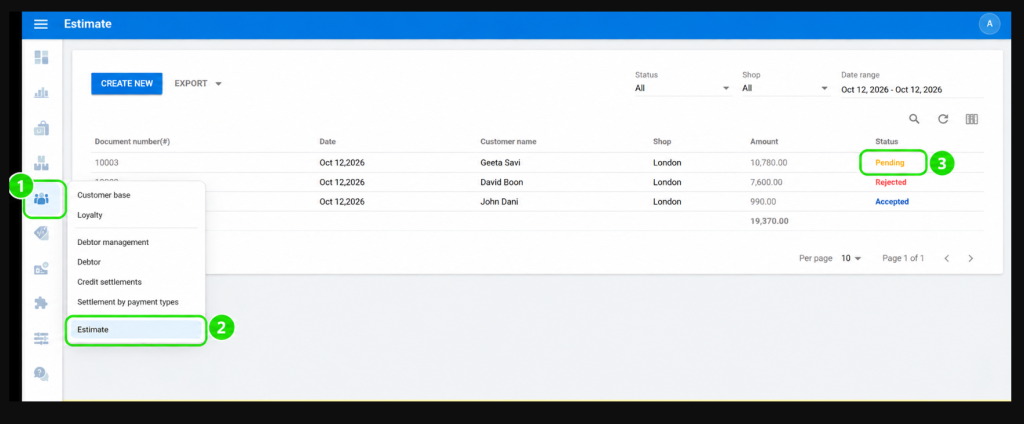
- Go to Customers → Estimation.
- Click the Create New icon.
- Choose the customer and shop, then enter the estimate validity period and any comments.
- Select the product(s) and enter the quantity. (Add discount % if available.)
- Click Save to create the estimate.
- After saving, click the Send icon to email the estimate directly to the customer.

How to Accept or Reject an Existing Estimate
- Log in to the Back Office web portal.
- From the main menu, select the Customer section.
- Click the Estimate tab to view all previously created estimates.
- Find and click on the estimate status you want to review.
- Click the three-dot menu next to the Send icon.
- Select either Accept or Reject, then confirm your action.