Introduction
SalesPlay POS allows you to create KOT (Kitchen Order Ticket) Notes to be sent to the kitchen along with the order. These notes can be pre-arranged for quicker and more accurate communication.
Steps to Enable and Add KOT Notes
- Log in to the POS Back Office.
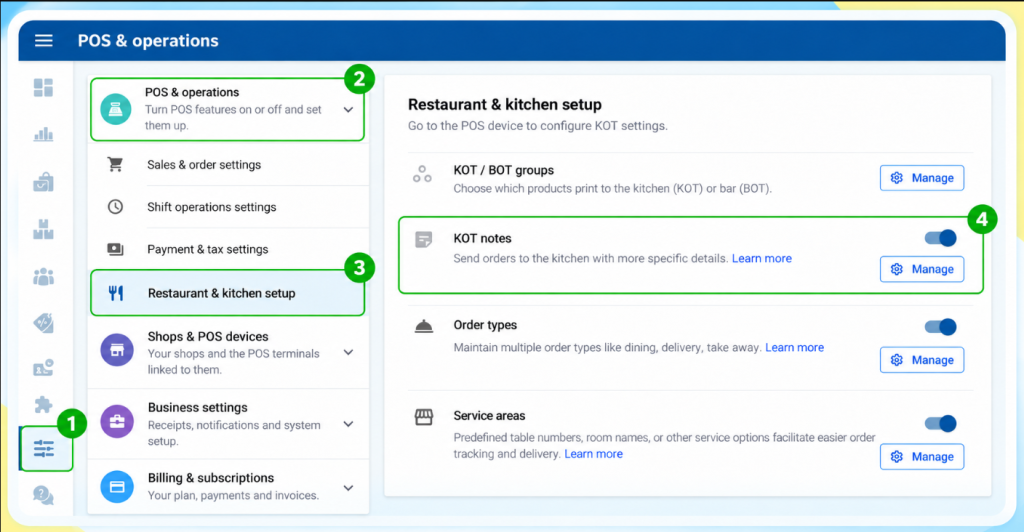
- Select Settings, then go to “POS & Operations”
- Go to the Restaurant & Kitchen Setup section.
- Turn ON the KOT Notes button and click the “Manage” button
- Click Add KOT / BOT Notes.
- Enter your note in the text field.
- Click Save.
When billing from the POS App, click an item in the Item Cart and go to the KOT Notes dropdown to view or select your created KOT notes.
How to Assign a KOT Note to a KOT
When sending an order to the kitchen, you can assign a pre-defined KOT Note to the order as follows:
- Open the POS App and select New Sale.
- Select the item and click it.
- Click the item again in the Item Cart area.
- Go to the KOT Notes area and click to open the dropdown.
- Tick ON the relevant KOT Note.
- Click Ok.
- Click the Add button.
- Click Save or Charge to proceed.
Once billed, the assigned KOT Note will appear on the KOT sent to the kitchen.