Modifiers let customers customize products by adding options such as toppings, sauces, fillings, or extras.
Examples:
- Pizza: Cheddar, Mozzarella, Olives
- Coffee: Caramel Syrup, Whipped Cream, Extra Espresso
- Burger: Lettuce, Tomato, Extra Cheese
Tip: Create modifiers in the Back Office before using them in the POS App.
What Are Modifier Groups?
A Modifier Group is a collection of related modifiers.
For example:
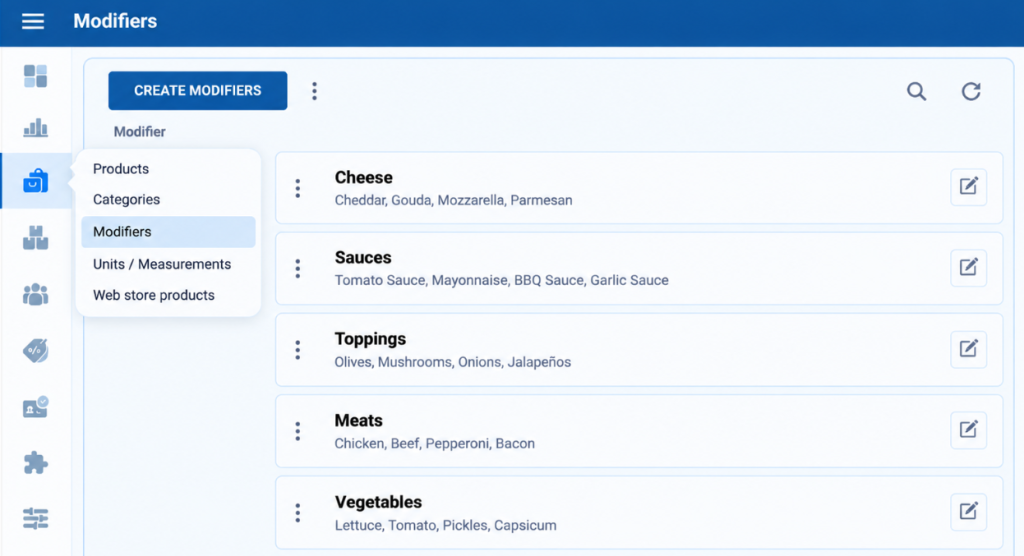
Cheese
- Cheddar
- Mozzarella
- Gouda
Sauces
- Mayonnaise
- BBQ Sauce
- Garlic Sauce
Modifier groups make it easier to organize options and control how customers select them.
Create a Modifier Group
- Log in to the SalesPlay Back Office.
- Go to Products → Modifiers.
- Click Create Modifier.
- Enter the Modifier Group Name, such as Cheese.
- Click Add Modifier.
- Enter the modifier name, such as Cheddar.
- Enter the Cost and Selling Price, if required.
- Click Add Modifier to add more options.
- Click Save.
Attach the Modifier Group
- Click Attach.
- Select a Product or Category.
- Select the products you want to apply the modifier group to.
- Click Save.
Example: Create a Cheese group with Cheddar and Mozzarella, then attach it to the Pizza category.
Use Modifiers in the POS
- Open the POS App.
- Start a New Sale.
- Select a product with modifiers.
- Select the customer’s preferred modifiers.
- Adjust the quantity if allowed.
- Tap Add.
- Continue with the sale and tap Charge.
Example:
Pizza → Mozzarella → Garlic Sauce → Add
Increase Modifier Quantity
You can allow customers to order multiple quantities of the same modifier.
For example, a customer can order Mozzarella × 2 or Double Lettuce.
In the POS:
- Select the product in the cart.
- Tap the modifier.
- Use + or − to change the quantity.
- Confirm the selection.
Change the Order of Modifier Groups
You can change the order in which modifier groups appear.
- Go to Products → Modifiers.
- Click the three-dot menu next to Create Modifier.
- Select Change Order.
- Drag and drop the groups into the desired order.
- Click Save.
Example:
Size → Cheese → Toppings → Sauces
Change the Order of Modifiers
You can also change the order of modifiers within a group.
- Go to Products → Modifiers.
- Open the modifier group.
- Select Change Order.
- Drag and drop the modifiers.
- Click Save.
Example:
Tomato Sauce → Mayonnaise → BBQ Sauce → Garlic Sauce
Modifier Group Rules
Modifier Group Rules let you control how customers select modifiers.
Note: Advanced Modifier Rules are currently available for Web Store and QR Ordering. POS App support is coming soon.

Visibility
Show on Printed Receipts
Turn this off if you do not want the modifier group to appear on printed customer receipts.
This does not affect Receipt View, KOT, or KDS.
Show on Web Store & QR Ordering
Turn this off to hide the modifier group from the Web Store and QR Ordering.
The modifiers can still be available in the POS.
Selection Rules
Require a Selection
Customers must select at least one modifier before adding the product to the cart.
Example:
A Pizza must have at least one cheese selected: Cheddar, Mozzarella, or Gouda.
Allow Multiple Selections
Allows customers to select more than one modifier from the group.
You can set a Minimum and Maximum.
Example:
- Minimum: 1
- Maximum: 3
The customer can select up to three cheese varieties.
Quantity Rules
Allow Multiple Quantities
Allows customers to add more than one quantity of the same modifier.
You can set a Minimum Quantity and Maximum Quantity.
Example:
- Minimum Quantity: 1
- Maximum Quantity: 5
The customer can select Mozzarella × 5, but cannot select Mozzarella × 6.
This is useful for:
- Extra cheese
- Double lettuce
- Extra sauce
- Additional syrup
Modifier Visibility
Each modifier can also have its own visibility settings.
Show on Printed Receipts
Controls whether the modifier appears on the printed customer receipt.
The modifier group must also have Show on Printed Receipts enabled.
Show on Web Store & QR Ordering
Controls whether the modifier is available on the Web Store and QR Ordering.
This allows you to keep a modifier available in the POS while hiding it from online orders.