Follow these steps to turn off automatic receipt printing in both the Back Office and the POS App. This allows you to control when receipts are printed.
1. Disable Automatic Receipt Printing via Back Office
SalesPlay POS allows you to deactivate the automatic print feature. When disabled, pressing the CHARGE button will not print a receipt automatically, but you can still print it manually from the summary page.
- Login to SalesPlay Back Office.
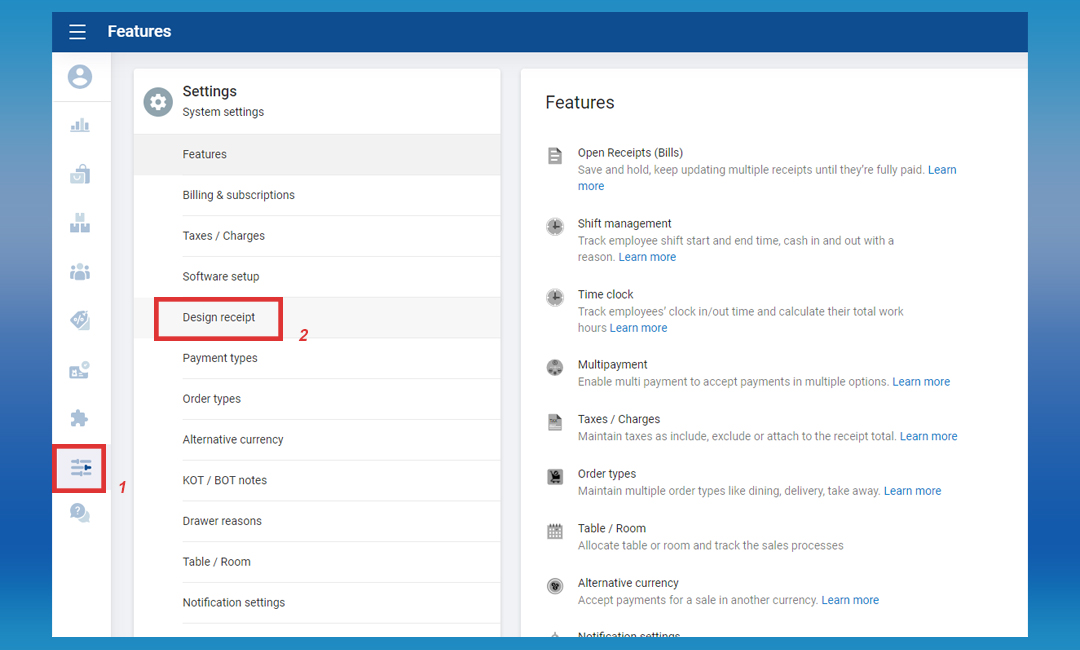
- Select Settings from the main menu.
- Go to Design Receipt.
- Click the More section.
- Tick OFF the Automatically print receipt option.
- Click Update to save changes.


Note: After updating, the CHARGE button will not print receipts automatically. Use the Print Receipt button on the final billing summary page if a manual print is needed.
2. Disable Automatic Receipt Printing within the POS App
- Open the POS App main menu.
- Select Settings > Printers.
- Click on an existing printer or select the Add (+) button to create a new printer.
- Tick OFF the Automatically print receipt option.
- Click SAVE to confirm.
Note: Once this is deactivated, pressing the CHARGE button will not print a receipt. To print a receipt, press the Print Receipt button on the final billing summary page.