• Point of Sale
  • Categories
    • Getting Started with SalesPlay
    • Web POS
    • Sales
    • Product
    • Inventory
    • User
    • Customers
    • Reports
    • Settings
  • Community
  • Point of Sale
  • Categories
    • Getting Started with SalesPlay
    • Web POS
    • Sales
    • Product
    • Inventory
    • User
    • Customers
    • Reports
    • Settings
  • Community
Home/Knowledge Base/Settings/Integrate QuickBooks (Offline)

Integrate QuickBooks (Offline)

May 21, 2026

Step By Step

SalesPlay POS system offers seamless integration with QuickBooks accounting and bookkeeping software. This integration enables you to download receipts in CSV format and easily upload them to QuickBooks.


1. Log in to the POS Back Office Web-portal
2. Select “Integrations” from the main menu
3. Go to the “Apps”
4. Tick ON “QuickBooks”
5. QuickBooks will be enabled and available under “Add-on Apps” in the Integrations section.
6. Select QuickBooks Integration and select the “Offline” method
7. Enter a valid date and time range, and select the correct SHOP
8. Click the download CSV option
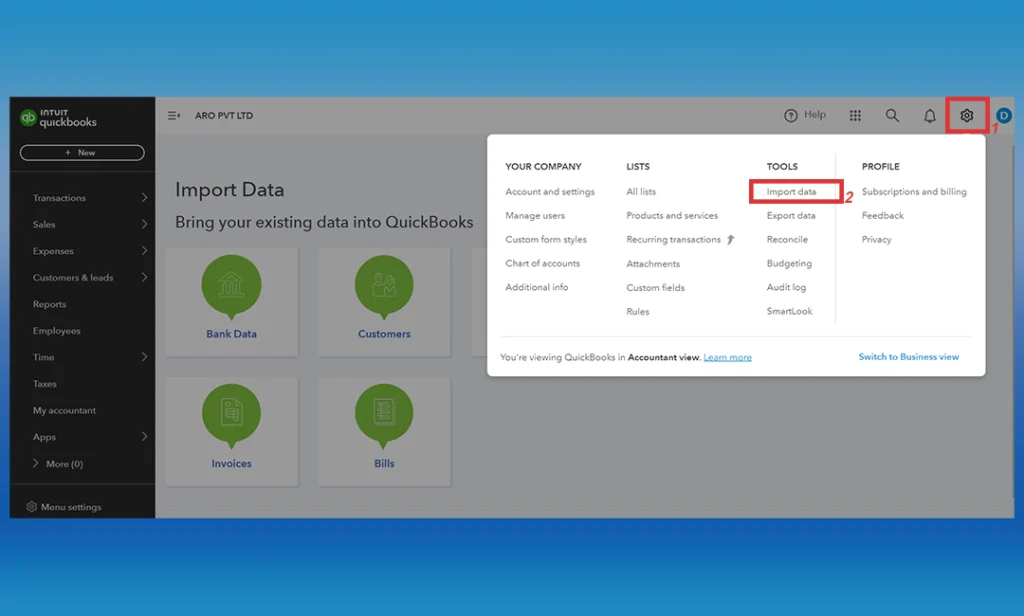
9. Upload the CSV to the QuickBooks “import data” section

Enter a valid date and time range, and select the correct SHOP
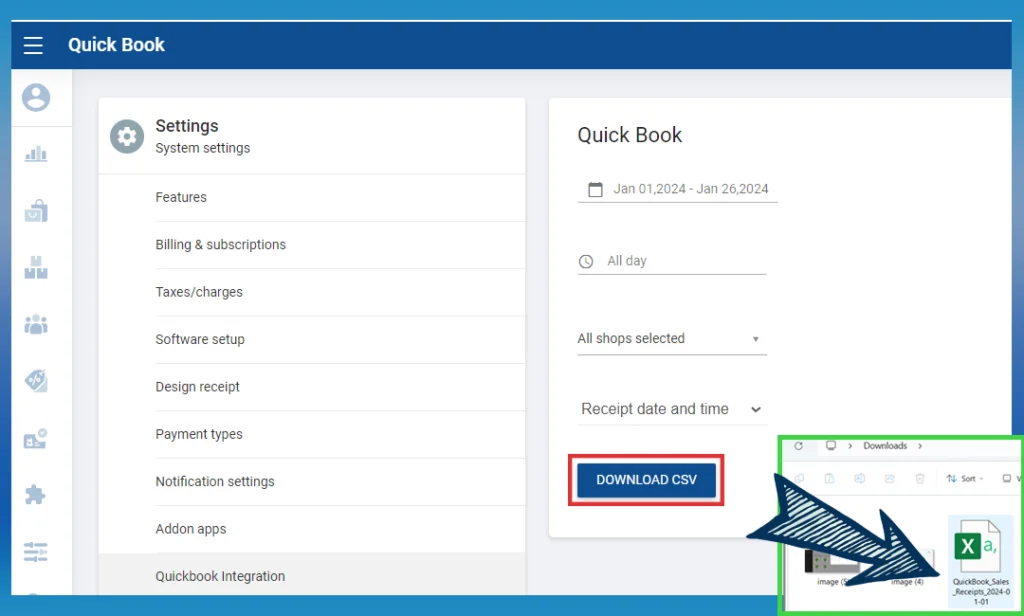
  • Click download CSV option

Upload the CSV to the Quickbook “import data” section
Related Help Links

QuickBooks Online

Was this helpful?

Yes  No
Related Articles
  • How to Add Charges
  • How to Add a Payment Gateway in SalesPlay POS
  • How to Allow or Block Negative Stocks in SalesPlay POS
  • How to Sync Offline Receipts in SalesPlay POS
  • How to Manage Reservations in SalesPlay POS
  • How to Get an Email Notification in SalesPlay POS

No luck finding what you need? Contact Us

Popular Articles
  • POS Dashboard App – Setup Guide
  • Issues Caused by Damaged Network Cables
  • How to Set Up Manual Cash Rounding
  • How to Subscribe Add-ons / Modules Employee Management
  • How to Create an Employee
KB Category
  • Affiliate Program
  • Customer Orders
  • Customers
  • Distributor Referral
  • Getting Started
  • Inventory
  • Loyalty
  • Payment
  • Product
  • Reports
  • Sales
  • Settings
  • Setup
  • User
  • Web POS

Still need help?

Contact Us

Our support team is
here for you!

Ask the Community

Connect and get answers
from fellow SalesPlay POS users.

Asset-3-3.webp
  • Privacy Policy
  • Terms & Conditions
  • Return & Refund Policy
Asset-3-3.webp
  • Privacy Policy
  • Terms & Conditions
  • Return & Refund Policy