SalesPlay POS provides a user-friendly solution to customize extra space at the edge of receipts. This setting helps businesses optimize printing, reduce paper wastage, and improve the overall appearance of printed receipts.
Introduction
- The Extra Space for Receipt Edge feature allows businesses to adjust the gap size at the end of printed receipts, enhancing print quality and presentation.
Step-by-Step Guide
-
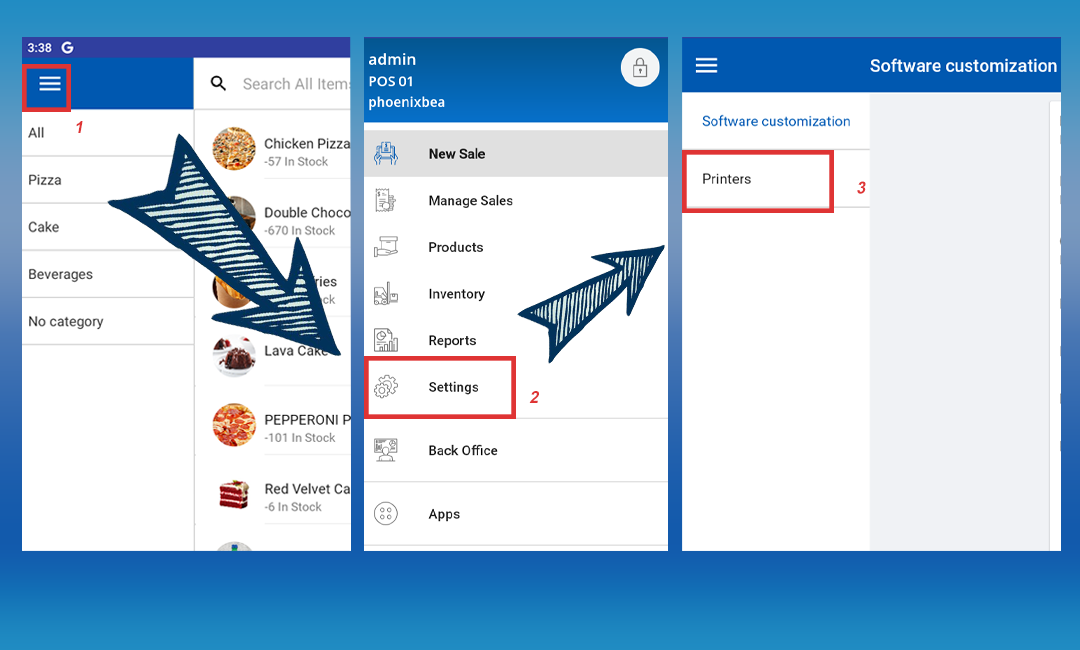
- Open POS App Settings: From the POS App main menu, go to Settings > Printers.
-
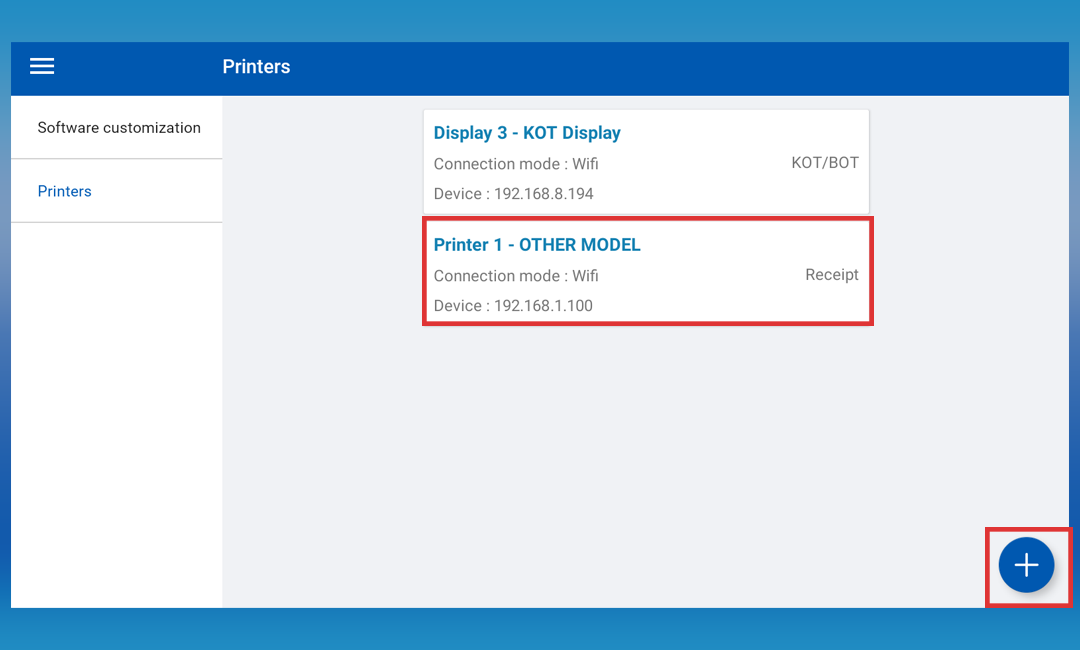
- Select a Printer: Click on an already created printer or click the Add (+) button to create a new one.
-
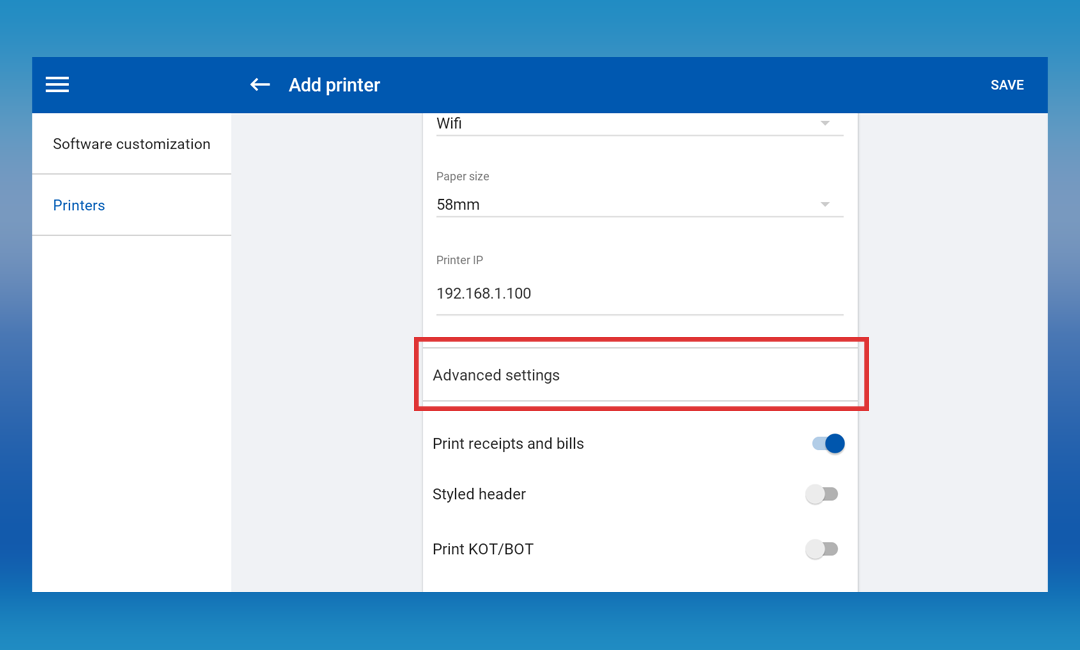
- Choose Printer Type: Select Advanced Settings as the printer type.
-
- Set Extra Space: From the Extra Space for Receipt Edge dropdown, select a gap measurement that fits your printer (options: 10mm, 20mm, 30mm, 40mm).
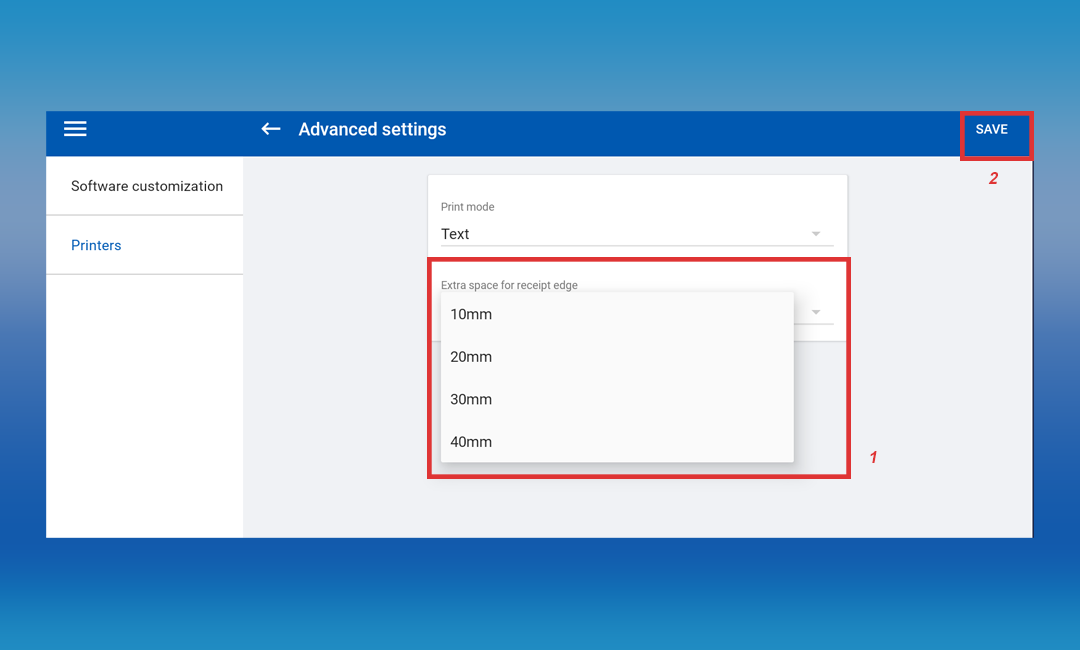
- Click SAVE to apply the setting to your printer.
Key Features
- Customizable Gap Sizes: Choose between 10mm, 20mm, 30mm, or 40mm to suit different printers and paper types.
- Easy Activation: Quickly enable this feature in the POS App under Printer Settings and save the preferred gap size for immediate use.