To provide a faster, more stable, and reliable experience, SalesPlay WebPOS is moving from the browser version to the SalesPlay WebPOS Desktop Application (EXE).
From 30th July 2026, WebPOS users need to use the Desktop Application. We highly recommend installing the Desktop Application to ensure uninterrupted access to your POS.
Why is this change being made?
The SalesPlay WebPOS Desktop Application offers several advantages over using a web browser:
- Faster startup and login.
- Better performance for day-to-day POS operations.
- Improved stability by avoiding browser-related issues, such as accidental tab closures and browser updates.
- A dedicated application designed for a smoother and more reliable experience.
- Easy access from your desktop or taskbar.
Who needs to switch?
This change applies to all existing SalesPlay WebPOS users who currently access WebPOS through a web browser.
If you are already using the SalesPlay WebPOS Desktop Application, no action is required.
How to Install the Desktop Application
Follow these steps to switch from the browser version to the Desktop Application:
Step 1
Log in to SalesPlay WebPOS using your web browser.
Step 2
Open the Main Menu and select Software Customization.
Step 3
Click Install Web App.
Step 4
Click Download and run the installer.
Step 5
After the installation is complete:
- A SalesPlay WebPOS shortcut will be created on your desktop.
- Double-click the shortcut to launch the application.
- (Optional) Pin the application to your taskbar for quicker access.
Steps with Images
Existing Users: Switching from Browser to EXE
If you are currently using SalesPlay Web POS through a web browser and want to switch to the EXE version, follow the steps below:
Step 1:
Log in to SalesPlay Web POS.
Navigate to the Main Menu and select Software Customization.

Step 2:
Click Install Web App.

Step 3:
Click Download and proceed with the installation.

After installation, a desktop shortcut will be created. Use this shortcut to launch SalesPlay Web POS as a desktop application.
New Users: First-Time Registration
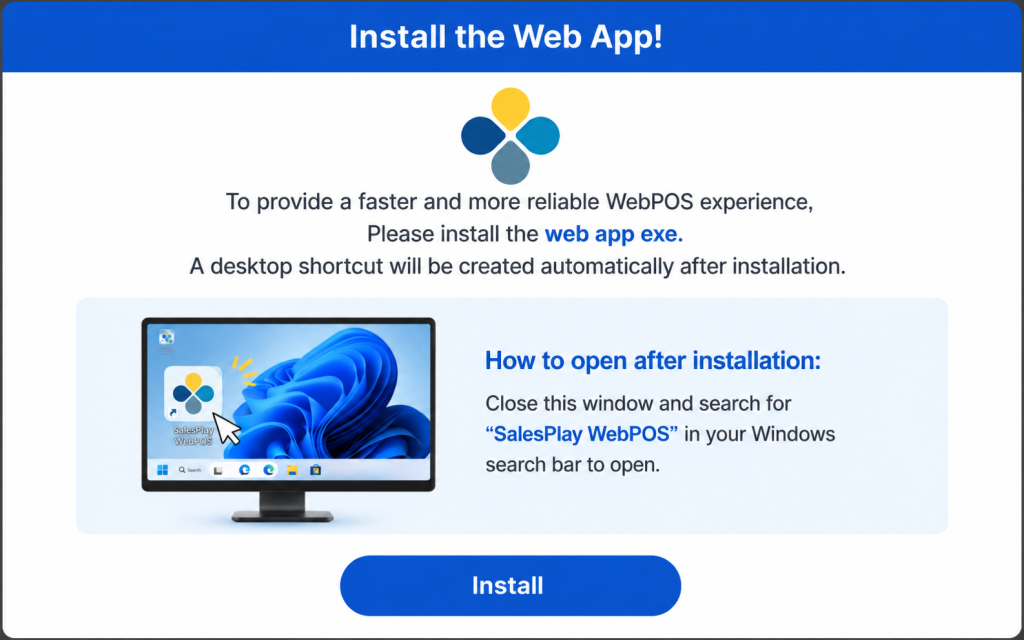
After completing the SalesPlay Web POS registration process, a separate window will appear prompting you to download the Web App (EXE file).
Once the download is complete:
-
The EXE file will be installed on your system.
-
A shortcut will be created on your desktop.
-
Double-click the shortcut to open SalesPlay Web POS.
You may also pin the application to your Taskbar for faster access.
Important
Please complete the installation before 30 July 2026.
After this date, SalesPlay WebPOS will only be accessible through the SalesPlay WebPOS Desktop Application (EXE).
Need Help?
If you experience any issues during installation or have questions about switching to the Desktop Application, please contact the SalesPlay Support Team for assistance.