What is the Time Clock Feature?
The Time Clock feature in SalesPlay helps you track employee attendance and working hours. It allows staff to Clock In at the start of their shift and Clock Out when their shift ends, making it easy to monitor work hours and manage attendance accurately.
How to Enable the Time Clock Feature?
To start tracking employee attendance using the Time Clock feature, follow these steps in the Back Office:
- Log in to the POS Back Office Web Portal.
- Select Settings from the main menu.
- Go to the “POS & operations” section and then “Shift operations settings”
- Tick ON the “Time Clock” button.
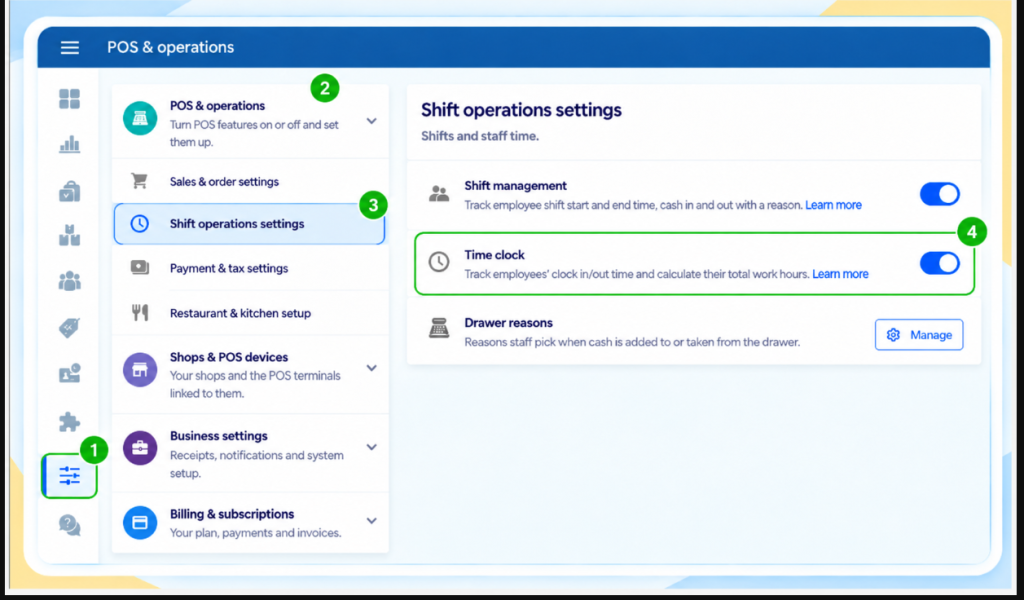
Once enabled, employees will be able to Clock In and Clock Out directly from the POS App.
How to Use the Time Clock in the POS App
Employees can easily clock in and out using the Time Clock feature in the POS App. Here’s how:
- From the POS App main menu, tap the Padlock icon.
- Select the Time Clock icon.
- Enter the employee’s PIN.
- Tap Clock In to start the shift.
- If the time displayed is correct, tap Go to POS to continue.
Note: At the end of the shift, follow the same steps and tap Clock Out instead.
How to Print Clock In/Out Slips
The Time Clock feature allows you to automatically print a slip when an employee clocks in or out. This provides a simple record of attendance and helps businesses track employee working hours.
Enable Clock In/Out Slip Printing
- Open the POS App.
- Go to Main Menu → Settings → Printers.
- Select an existing printer or tap Add Printer.
- Enable Print Clock In/Out Slip.
- Tap Save.
Once enabled, a slip will be automatically printed each time an employee clocks in or clocks out.
How to View the Timecard Report
The Timecards Report provides a detailed log of each employee’s Clock In and Clock Out times. This helps managers track attendance, monitor punctuality, and ensure staff follow scheduled work hours.
To access the Timecard Report:
- Log in to the SalesPlay POS Back Office web portal.
- From the main menu, go to the Employee Management section.
- Click Timecards to view employee attendance records.
Need to make changes?
You can adjust timings or manually add new records directly from the Users > Timecards section in the Back Office.
How to View the Total Hours Worked Report in SalesPlay
The Total Hours Worked report gives you a quick summary of how many hours each employee has worked over a selected period. It is useful for evaluating productivity and managing payroll.
To access the report:
- Log in to the SalesPlay POS Back Office web portal.
- From the main menu, select Employee Management.
- Click Total Hours Worked to view the summarized data for each employee.