Use the Paydibs payment gateway to accept card and supported e-wallet/QR payments directly through SalesPlay POS. Paydibs provides in-store payment solutions that can integrate with POS systems and supports major Malaysian payment methods.
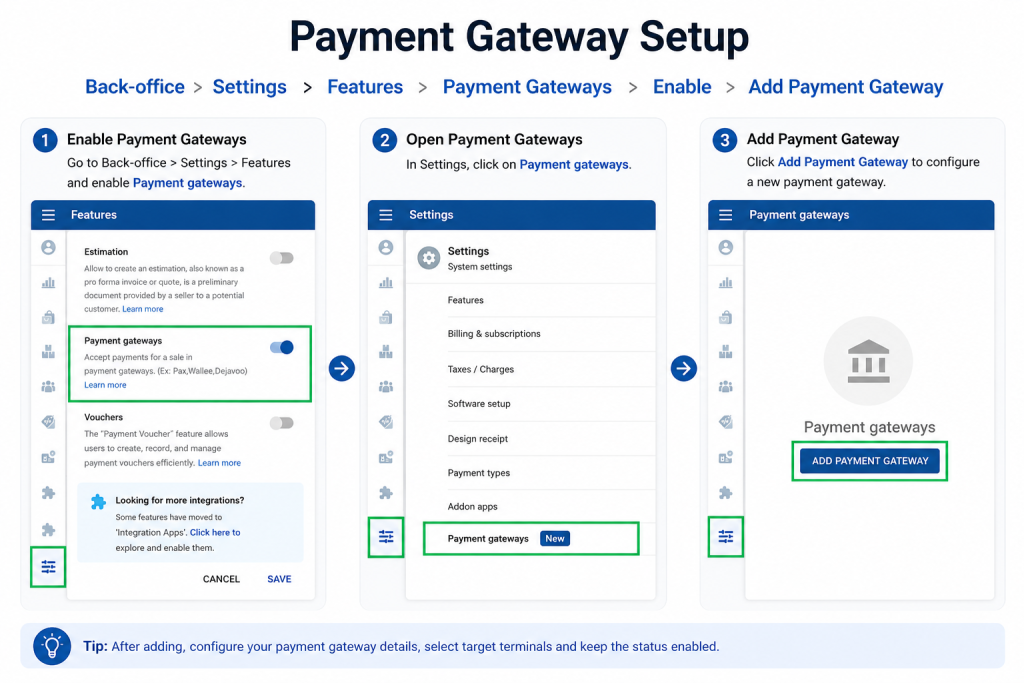
Step 1: Add Paydibs in SalesPlay Back Office
- Sign in to the SalesPlay Back Office.
- Go to Settings > Features.
- Enable Payment Gateways and click Save.
- Go to Settings > Payment Gateways.
- Click Add Payment Gateway.
- Select Paydibs.
- Enter the required information:
- Device Name
- Merchant Terminal Login ID
- Password
- Sub-Merchant ID
- Under Payment Methods, select the required methods:
- DuitNow
- TNG (Touch ‘n Go eWallet)
- MCash
- Boost
- MAE
- ShopeePay
- GrabPay
- AhaPay
- Under Target Terminals, select the POS terminal(s) that will use Paydibs.
- Keep Status enabled.
- Click Save.
Note: The payment methods available to a merchant may depend on the Paydibs account and configuration. Paydibs currently lists DuitNow, Touch ‘n Go eWallet, Boost, MAE, ShopeePay and GrabPay among its supported e-wallet/QR channels.
Step 2: Enable Paydibs for Payments
- Go to Settings > Payment Types.
- Open already created payment type or create new
- Open it and Enable Payment Gateway Enable.
- Select Paydibs as the payment gateway.
- Click Update.
The payment type is now connected to Paydibs.
Step 3: Check Paydibs on the POS App
- Open the SalesPlay POS App.
- Go to Settings > Payment Gateway.
- Check that Paydibs is displayed. (If it is not displayed, tap Sync to download the latest Back Office configuration)
- Select Paydibs and make sure Status is enabled.
- Save the settings.
The Paydibs configuration is now ready on the POS.
Step 4: Process a Payment
- Open a New Sale.
- Add products to the sale.
- Tap Charge.
- Select Card as the payment type.
- Select the required Paydibs payment method.
- Continue with the payment on the Paydibs terminal.
Depending on the Paydibs configuration, customers can pay using supported card, e-wallet or QR payment options. Paydibs lists major card schemes as well as Malaysian e-wallet and QR channels for its in-store solutions.
Supported Payment Methods
- DuitNow – A widely used Malaysian QR payment network that allows customers to make payments using participating banking and e-wallet apps.
- TNG (Touch ‘n Go eWallet) – A popular Malaysian digital wallet used for QR and cashless payments.
- MCash – A Malaysian digital payment/e-wallet service supported by Paydibs on selected payment channels.
- Boost – A Malaysian e-wallet that allows customers to make cashless payments through the Boost app.
- MAE – Maybank’s digital banking/e-wallet app, which supports QR-based payments.
- ShopeePay – Shopee’s digital wallet, allowing customers to make payments through the ShopeePay service.
- GrabPay – Grab’s digital wallet, allowing customers to pay using their Grab account.
- AhaPay – An additional payment method available where enabled for the merchant’s Paydibs account.
Important: The exact payment methods displayed in SalesPlay POS depend on the payment methods enabled for the Paydibs merchant account and the configuration provided by Paydibs.