• Point of Sale
  • Help Topics
    • Getting Started with SalesPlay
    • Web POS
    • Sales
    • Product
    • Inventory
    • User
    • Customers
    • Reports
    • Settings
  • Community
  • Point of Sale
  • Help Topics
    • Getting Started with SalesPlay
    • Web POS
    • Sales
    • Product
    • Inventory
    • User
    • Customers
    • Reports
    • Settings
  • Community
Home/Knowledge Base/Setup/How to Use Quick Learn in SalesPlay Backoffice

How to Use Quick Learn in SalesPlay Backoffice

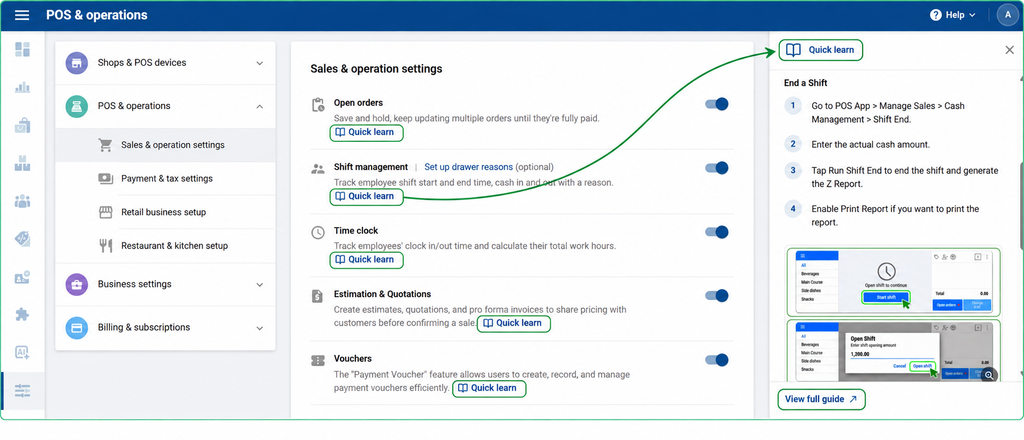
Quick Learn gives you short instructions and screenshots to help you set up and use features. The guide opens in a side panel in Backoffice, so you can follow the steps as you work.

  1. Sign in to SalesPlay Backoffice.
  2. Go to Settings > POS & Operations.
  3. Find the feature you want to learn about and select Quick Learn.
  4. Follow the steps in the side panel.
  5. For more details, select View Full Guide to open the full Help Center article.
Was this helpful?

Yes  No

No luck finding what you need? Contact Us

Still need help?

Contact Us

Our support team is
here for you!

Ask the Community

Connect and get answers
from fellow SalesPlay POS users.

Asset-3-3.webp
Facebook Instagram Whatsapp Tiktok Youtube

SALESPLAY

  • Point Of Sale
  • Back Office
  • Web POS
  • Pricing

PRODUCTS & FEATURES

  • SalesPlay AI
  • App Integrations
  • API Integrations
  • Payment Solutions
  • Hardware

HELP & RESOURCES

  • Help Center
  • Community
  • Blog
  • Contact Us
  • Privacy Policy
  • Terms & Conditions

© 2026 SalesPlay. All Rights Reserved.

© 2026 SalesPlay. All Rights Reserved.

  • Privacy Policy
  • Terms & Conditions