Overview: Time Clock Reports
The Time Clock feature in SalesPlay POS allows businesses to track employee attendance and working hours accurately.
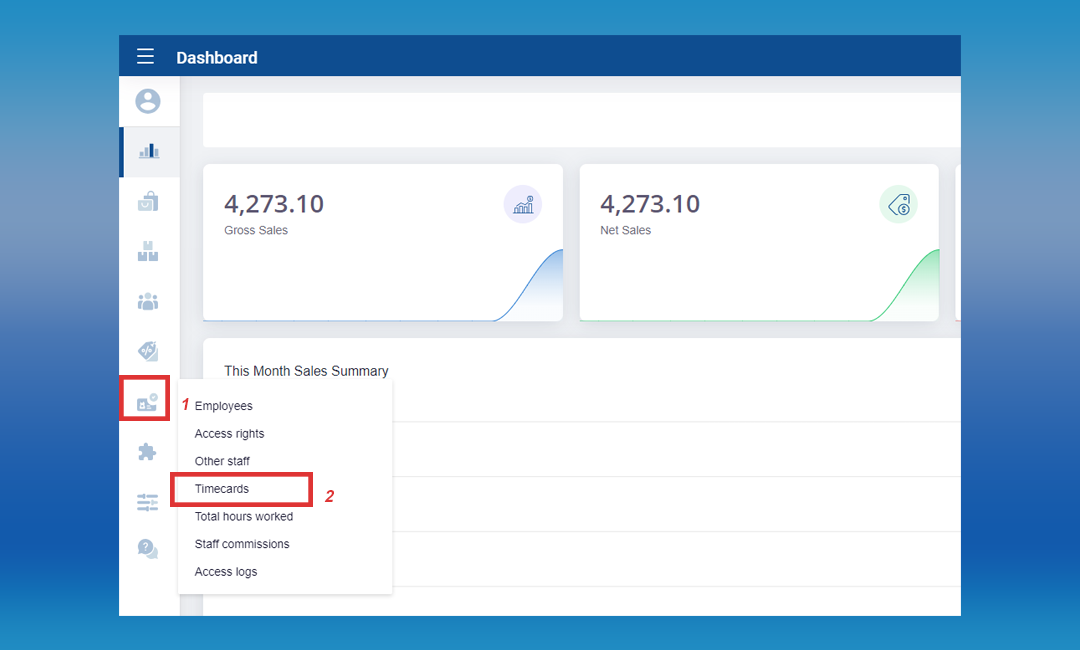
Reports are available in the Back Office under Employee Management > Timecards and
Users > Total Hours Worked.
These reports help management and HR teams monitor attendance, calculate payroll,
track productivity, and evaluate employee performance.
1. Timecards Report
- Clock-In and Clock-Out Details:
View detailed records of each employee’s clock-in and clock-out times. - Attendance Monitoring:
Track punctuality and daily attendance easily.
How to Access the Timecards Report
- Log in to POS Back Office.
- Select Employee Management from the main menu.
- Click Timecards.
2. Total Hours Worked Report
- Employee Summary:
View total hours worked by each employee within a selected period. - Accurate Payroll Processing:
Simplifies payroll calculation using verified working hours. - Performance Evaluation:
Helps HR assess attendance consistency and overall productivity.
How to Access the Total Hours Worked Report
- Log in to POS Back Office.
- Select Employee Management from the main menu.
- Click Total Hours Worked.

How to Activate and Use the Time Clock Feature
Step 1: Activate Time Clock in Back Office
- Log in to the POS Back Office Web Portal.
- Select Settings from the main menu.
- Go to the “POS & operations” section and then “Shift operations settings”
- Tick ON the “Time Clock” button.

Step 2: Clock-In Using POS App
- On the POS App main menu, tap the Padlock icon.
- Select the Time Clock icon.
- Enter the employee’s PIN.
- Tap Clock-In.
- If the time displayed is correct, click Go To POS.


How to Print Clock In/Out Slips
The Time Clock feature allows you to automatically print a slip when an employee clocks in or out. This provides a simple record of attendance and helps businesses track employee working hours.
Enable Clock In/Out Slip Printing
- Open the POS App.
- Go to Main Menu → Settings → Printers.
- Select an existing printer or tap Add Printer.
- Enable Print Clock In/Out Slip.
- Tap Save.
Once enabled, a slip will be automatically printed each time an employee clocks in or clocks out.