The Open Orders feature lets you save an order and keep it open until you are ready to complete it. You can return to the order later to add, edit, or remove items before completing the payment.
This is useful when an order is not ready to be completed immediately. For example, a customer may want to add more items later, a restaurant customer may continue ordering during a meal, or an order may need to be completed after receiving additional items.
Open Orders can be used for different types of orders, including:
- Customer orders
- Restaurant and café orders
- Dine-in orders
- Web Store orders
- QR orders
- Kitchen KOT/BOT orders
- Food delivery orders, such as Uber Eats
You can keep multiple orders open while continuing to serve other customers. When you are ready, simply open the saved order, make any required changes, and complete the transaction.
This helps businesses keep orders organized and ensures that unfinished orders are not lost or accidentally completed.
Steps to Use Open Orders
1. Enable Open Orders in Back Office
- Log in to POS Back Office Webportal.
- Select Settings from the main menu.
- Go to the “POS & operations” section and then “Sales & order settings.”
- Tick ON the Open Orders button.
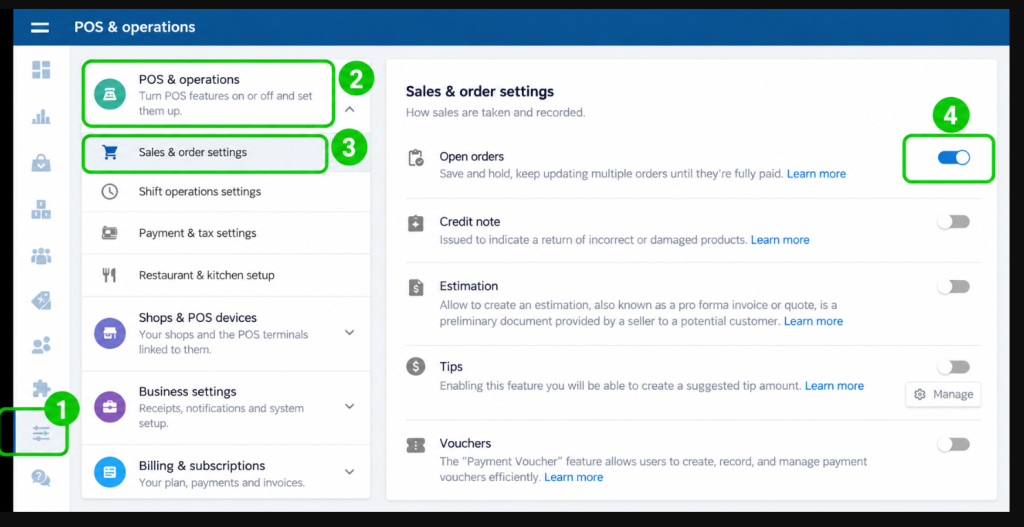
Once enabled, Open Orders will appear in the POS App on the New Sale interface.
2. Save a Receipt as an Open Order
- Open the POS App main menu.
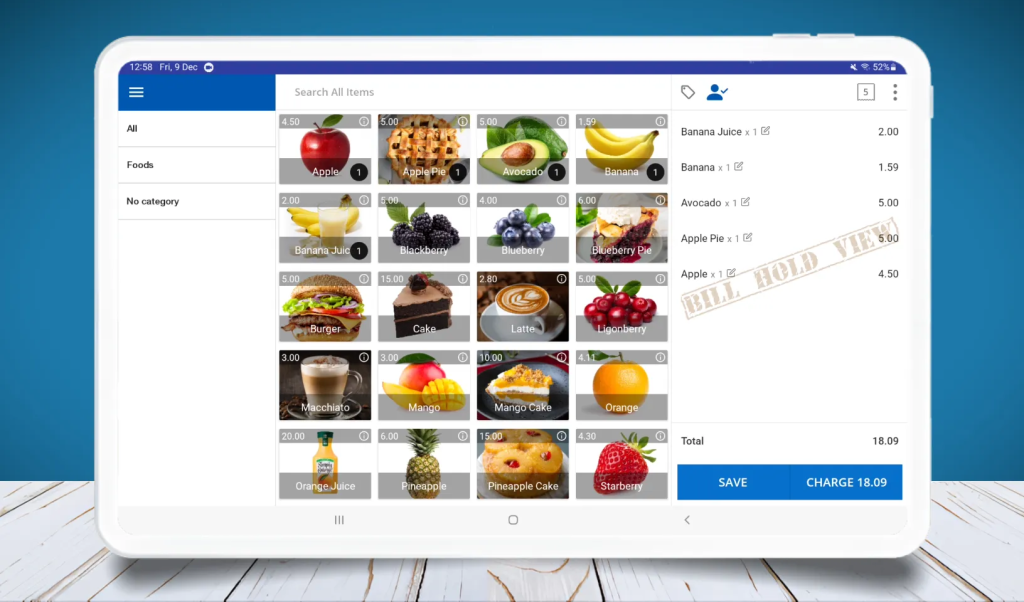
- Select New Sale.
- Add the items the customer wants to purchase.
- Click SAVE.
- Optionally, enter a name for the receipt for easy identification, then click SAVE again.
The saved receipt will now appear under the Open Orders section.
3. Use Open Orders Function

4. Use Open Orders Function

5. Filter Open Orders
Open Orders includes a filter option for efficient management:
- All Open Bills – Displays every open order.
- My Open Bills – Shows only orders created by you.
- By Employee Name – View open bills created by a specific cashier.

This makes it easier to locate and manage open receipts in busy environments.
6. Search Open Orders
You can quickly find an open order by searching with the order number, customer name, or other available order details.